The iOS 26 prompt keeps coming up—so why does it feel like nobody’s installing it?
You see the same iOS 26 prompt at the worst times—right before bed, when you’re leaving the house, or when your phone is at 22%. And when you ask around, it sounds like half the people you know are “waiting.” That gap can feel like a warning sign, even if nothing is actually wrong.
What’s usually happening is simpler: a lot of people hit one of three speed bumps and stop there. Their iPhone can’t get iOS 26, the update won’t fit without deleting photos or apps (or doing a backup they’ve been putting off), or they’re worried tomorrow’s phone will be slower, hotter, or have a key app break. None of those are about headline features. They’re about avoiding a bad surprise.
So the useful question isn’t “Why isn’t everyone updating?” It’s “Which blocker is mine?”
Low adoption doesn’t automatically mean iOS 26 is a mess
That “which blocker is mine?” question matters because low adoption numbers don’t tell you what you think they tell you. Plenty of people delay iOS updates even when they’re solid—because updating takes time, needs Wi‑Fi and power, and sometimes forces a storage cleanup they don’t want to do on a random Tuesday night.
There’s also a normal “wait and see” habit. If someone uses their phone for work, rideshare, school logins, or medical apps, they may hold off until they hear that the basics are fine. That caution can look like a silent verdict on iOS 26, but it’s often just risk management: they’d rather be a week late than lose Face ID login, a banking app, or a Bluetooth accessory pairing before a trip.
The longer you wait, the longer you sit on older bug fixes and security updates. Before you decide you’re “waiting,” start with the simplest gate—can your exact iPhone model even install iOS 26?
First reality check: can your iPhone even get iOS 26?
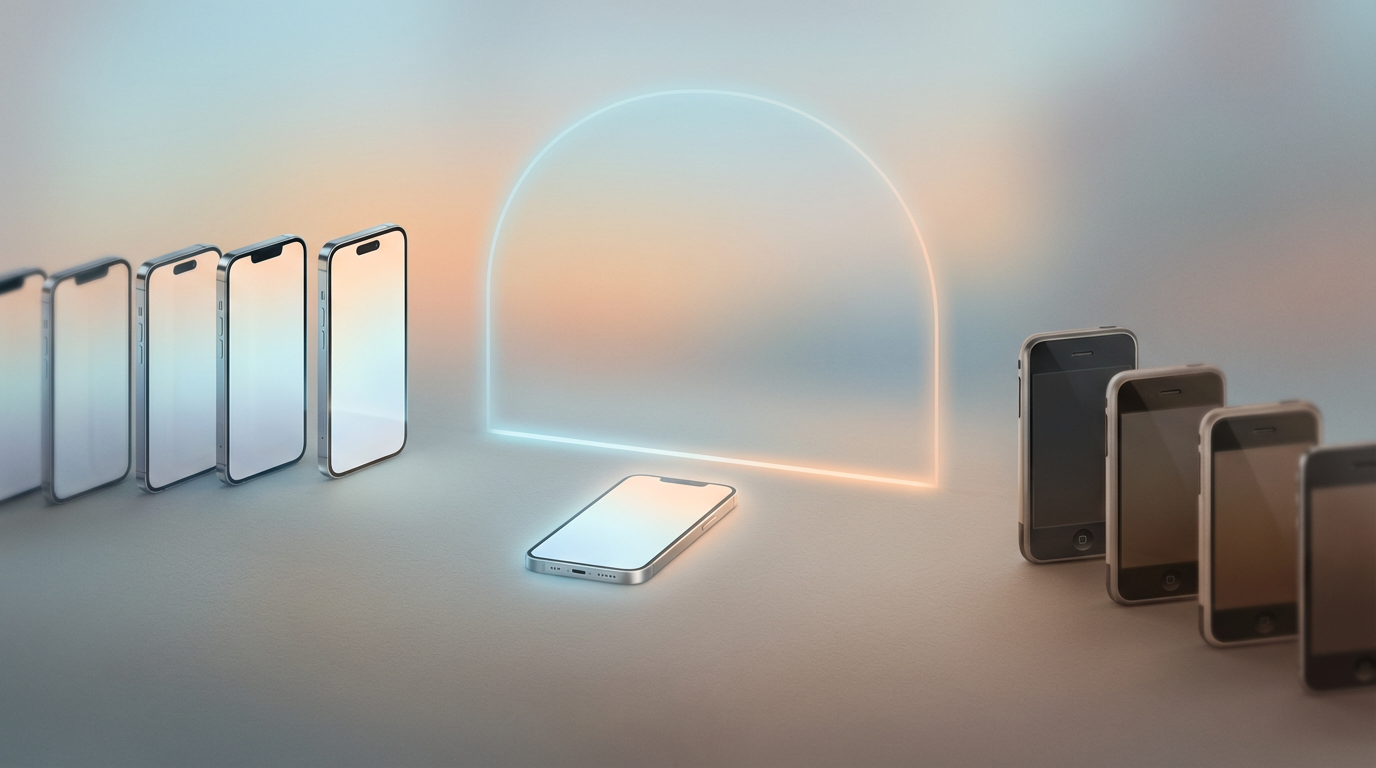
That eligibility gate is where a lot of “waiting” turns out to be “can’t.” The update prompt can still show up through settings badges or ads, but if your exact iPhone model isn’t supported, you’ll never see iOS 26 as an installable download—and that’s not a judgment on your phone. It’s just the yearly cutoff.
The fast check: go to Settings > General > About and note your Model Name. Don’t rely on “iPhone 12” alone if you’re unsure—people mix up generations, especially with iPhone SE and “mini” models. Then compare that model name to Apple’s iOS 26 compatibility list. If your model isn’t on it, your best move is to stay current on the latest iOS 25 updates your phone supports and focus on backups and security settings.
If your iPhone is eligible, the decision shifts to the two annoyances that stop most installs: whether it will fit without painful deletions, and what your escape hatch is if you regret it.
Eligible—but will the update fit, and can you undo it if something goes wrong?
That “will it fit?” moment usually shows up when you tap Download and Install and iOS asks for more storage than you expected. Even if you have “a few gigs free,” an update can need extra room to unpack, verify, and stage files. The practical friction is that iOS won’t always tell you the cleanest thing to delete—so people stall rather than guess and accidentally wipe the wrong photos thread.
Start in Settings > General > iPhone Storage. If you’re close to full, aim to free space beyond the minimum it asks for, not exactly the number on the prompt. Offloading unused apps is the least painful win because it keeps your data; large messages attachments, downloaded podcasts, and offline video are usually the “surprise” hogs. Plan on being on Wi‑Fi and power for a while, because interrupted installs create more annoyance than they save.
The second question—“can I undo it?”—has a blunt answer: you can’t simply roll back iOS with a switch. Your real escape hatch is a recent backup made before updating (iCloud or a computer). Without that, “undo” often means living with it until Apple ships the next patch, which is why preparing first can be the calmer choice.
The fear behind the hesitation: battery, speed, and ‘will my phone feel worse tomorrow?’
That “living with it until the next patch” is exactly what makes people nervous about battery and speed. You don’t want to wake up to a phone that runs hotter on the commute, drops 10% in an hour, or lags when you’re trying to unlock and pay. When your phone already feels “fine,” the downside risk feels bigger than any new feature.
What often happens after a major iOS update is a short stretch of extra background work—photos indexing, search rebuilding, app updates catching up. That can make the phone feel worse for a day or two, especially on older batteries. If you update at night and then judge it the next morning on cellular, high brightness, and a dozen apps re-syncing, you’re testing it under the harshest conditions.
Updating right before travel, a big work week, or a long driving day is when a small battery hit becomes a real problem. If you can’t afford any weirdness, waiting for the next point release is reasonable—but only after you’ve checked the “must-not-break” stuff you rely on every day.
When ‘everything works’ matters most: key apps, payments, CarPlay, and accessories
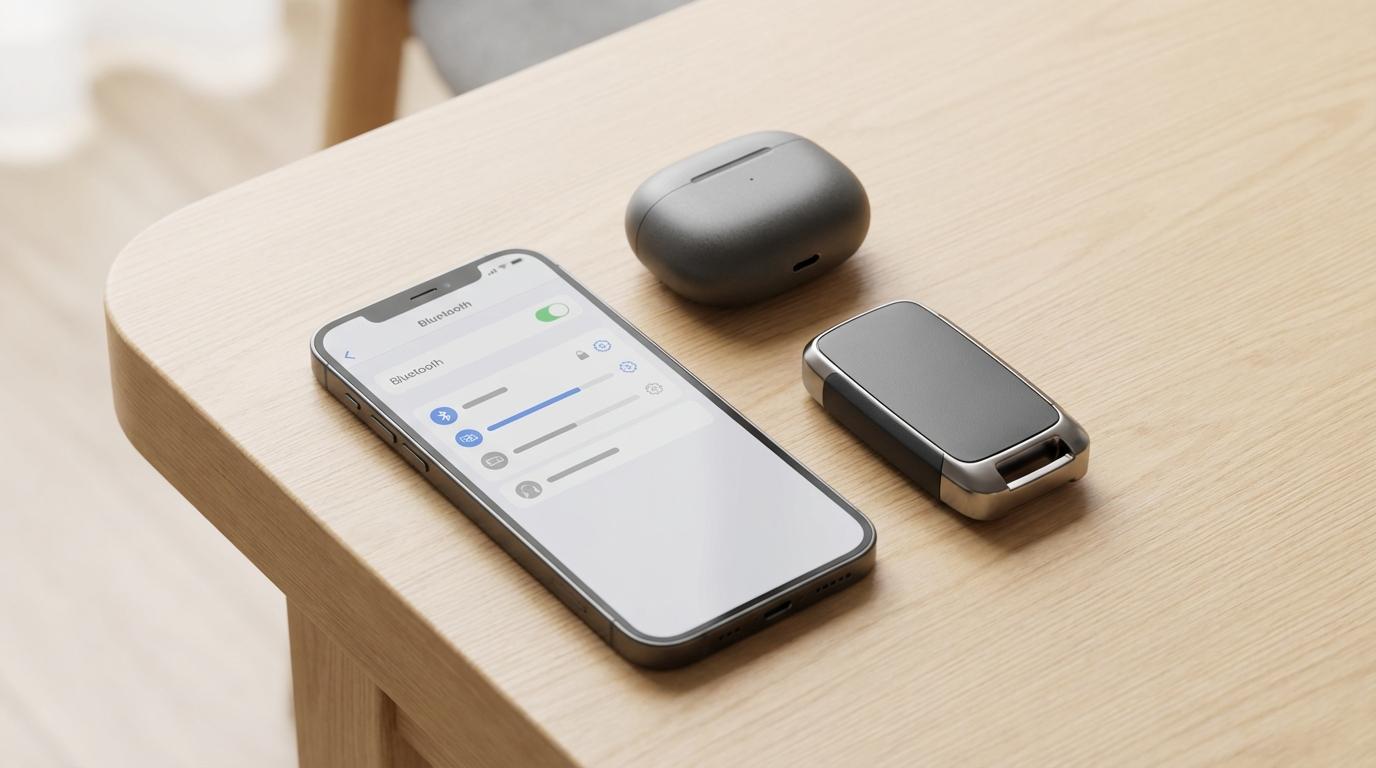
That “must-not-break” list is usually small, but it’s non-negotiable: the banking app you use for deposits, your work login, tapping to pay, the transit card in your wallet, CarPlay on the drive to school, and the earbuds that pair without drama. When people say they’re “waiting,” it’s often because one of those items has burned them before—an update lands, and suddenly Face ID re-auth breaks, or a car head unit starts dropping audio.
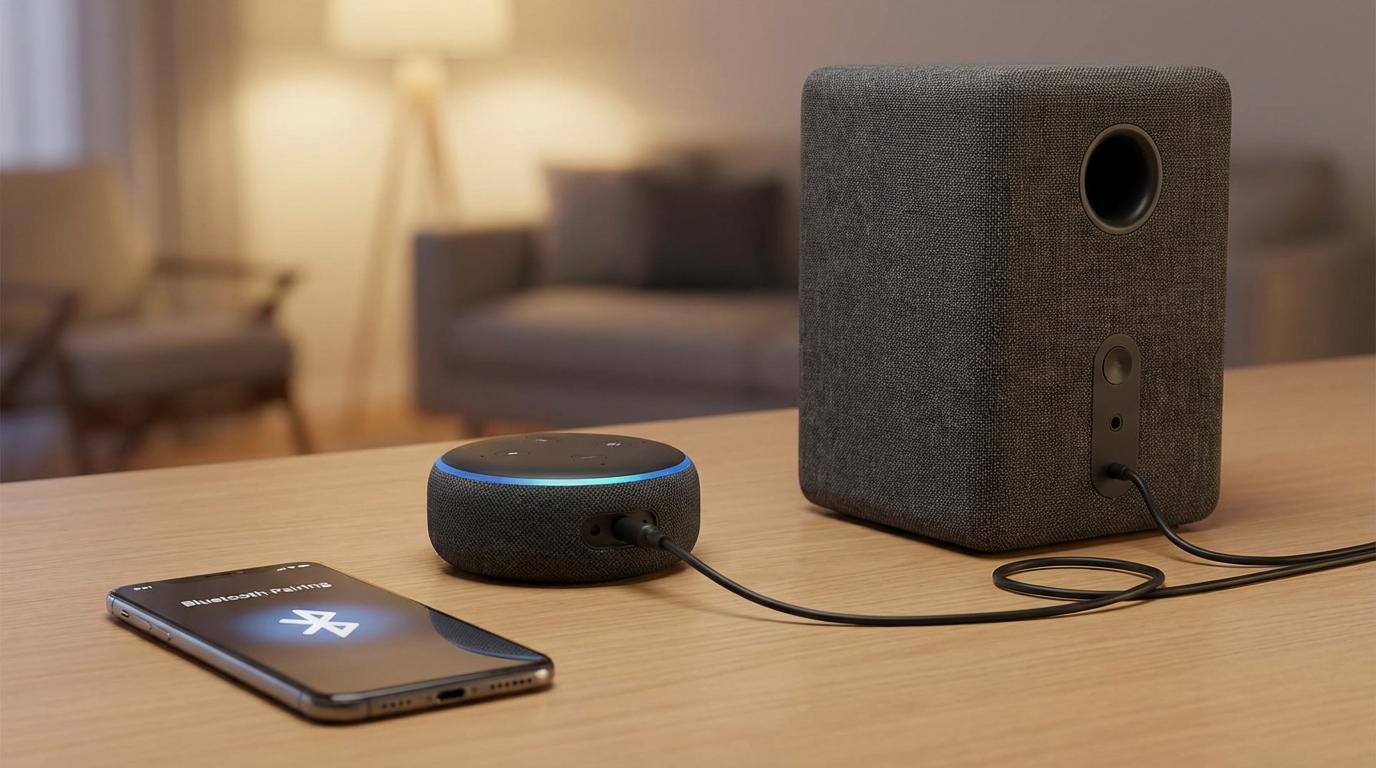
Do a quick pre-check while you still have a stable setup. Open your top five daily apps and make sure they’ve been updated recently in the App Store, then scan recent reviews for phrases like “iOS 26” and “won’t open.” If you rely on Apple Pay, verify your cards are active and your bank’s app can re-add them if needed. For CarPlay and accessories, expect to re-approve Bluetooth prompts after updating; the friction is that some older devices need a “forget this device” and re-pair, which is annoying when you’re already late.
If any single item on that list is mission-critical tomorrow, the safest move is to test on a quiet day—or wait until the next iOS 26 patch lands and the app makers catch up.
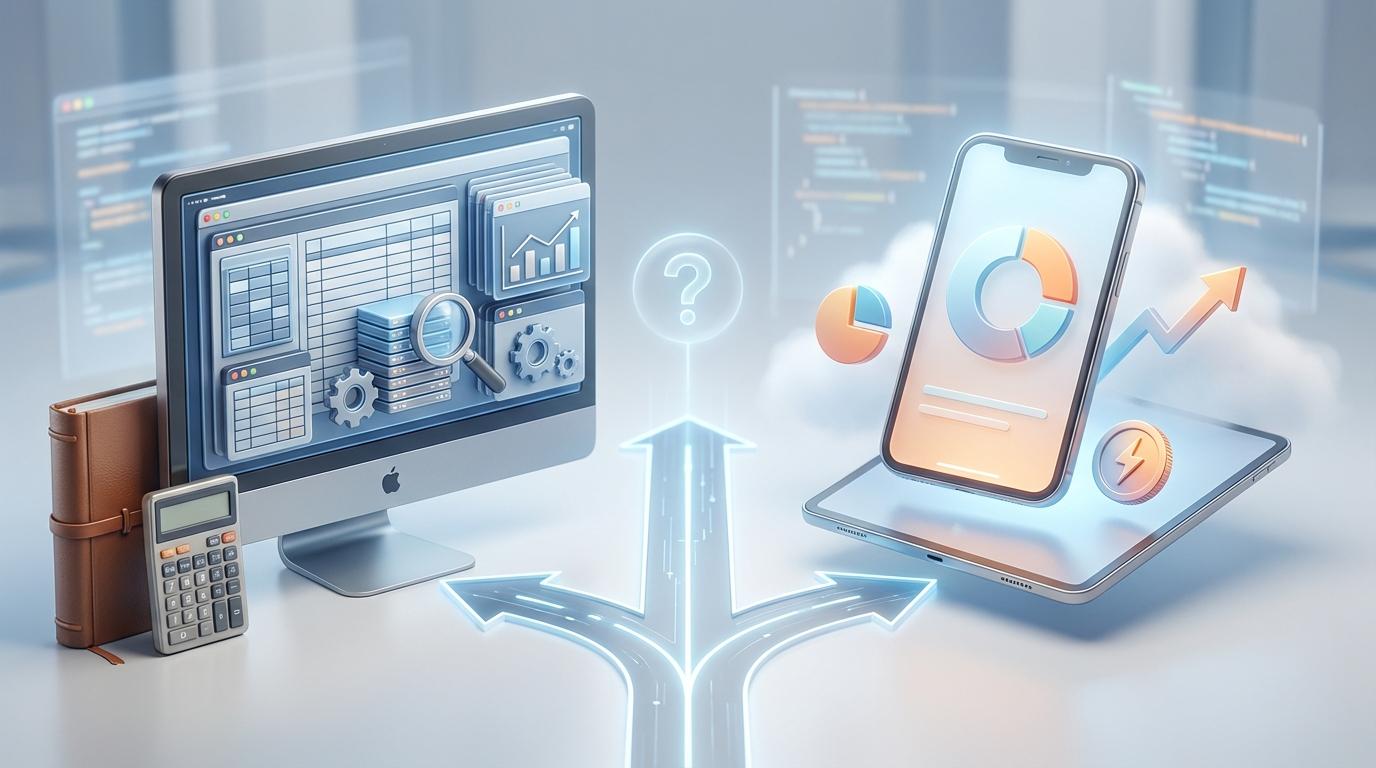
Choose your next step: update now, wait for the next patch, or prepare first
If one item on your “must-not-break” list is mission-critical tomorrow, your choice gets clearer. Update now if (1) your phone is eligible, (2) you have comfortable free space, (3) you have a fresh pre-update backup, and (4) you can give it a calm 24–48 hours to finish background cleanup without judging battery too fast.
Wait for the next iOS 26 point release if you’re heading into travel, a big work week, or you’ve been burned by a specific app or accessory before. The trade-off is you’re also waiting on security and bug fixes, so set a reminder to reassess on a real date, not “sometime later.”
Prepare first if storage is tight, your backup is old, or you’re not sure how you’d recover. Free space, update your key apps, confirm payments and CarPlay, then pick a quiet evening to install when “a little weirdness” won’t ruin your day.