You want your PC library on your phone—without the “why is this stuttering?” surprise
You open a game on your PC, then wonder why you can’t keep playing when you’re on the couch. You try streaming to your phone, it connects, and it even looks sharp—until the camera turns and everything starts to stutter, inputs feel late, or the connection drops when the PC goes to sleep.
Most of the pain isn’t the game. It’s the chain around it: Wi‑Fi quality, PC power settings, video settings that are a little too ambitious, and controls that don’t match how you actually play. Better tools can help, but only if they fit your setup instead of fighting it.
That’s the real question: is Apollo on Windows plus Artemis on your phone the clean path for you, or a new set of surprises?
Is Apollo + Artemis the right combo for your setup, or will it fight you?
Those surprises usually show up when the PC-side streamer and the phone-side client disagree about what “normal” looks like—resolution, refresh rate, controls, and how the PC should behave when you walk away. Apollo (Windows) plus Artemis (phone) is a good fit when you want direct control over those choices instead of hoping an auto mode guesses right.
It tends to go smoothly if your gaming PC is on wired Ethernet (or very solid 5 GHz/6 GHz), you can keep the PC awake on demand, and you’re fine doing a one-time pass through firewall prompts and network permissions. If you’re on mesh Wi‑Fi with frequent band switching, rely on hotel Wi‑Fi, or your PC sleeps aggressively and won’t wake reliably, this combo can “fight you” with random disconnects and pairing that works one day and fails the next.
Before installing anything, you’ll save time by doing a five-minute preflight on the PC, the phone, and your Wi‑Fi—because that’s where most “software” problems actually start.
Five-minute preflight: the PC, the phone, and the Wi‑Fi details that make or break it
That five-minute preflight is basically you checking whether the “chain” has any weak links before you blame the app. Start with the PC: if it can be on Ethernet, do it. If it’s on Wi‑Fi, confirm you’re on 5 GHz or 6 GHz (not 2.4), and make sure the signal is steady where you’ll actually play. Then check power behavior: your PC should stay awake while streaming, and it should wake consistently if you plan to connect while it’s asleep. If waking is hit-or-miss, plan on leaving it awake during sessions and fixing wake later.
On the phone, free up headroom. Close heavy background apps, turn off VPNs, and set battery saver off for the client app so Android/iOS doesn’t throttle networking in the name of “helping.” If you use a controller, pair it now and confirm the phone sees it as connected, because Bluetooth reconnect issues can look like “streaming lag.”
Finally, sanity-check the Wi‑Fi path: same network name for PC and phone, no “guest” network, and no forced band switching. If the router steers your phone between 5 GHz and 2.4 GHz, your video will look perfect right up until it doesn’t—so lock the phone to the faster band if you can before you install Apollo.
Installing Apollo on Windows without losing track of ports, permissions, and wake behavior
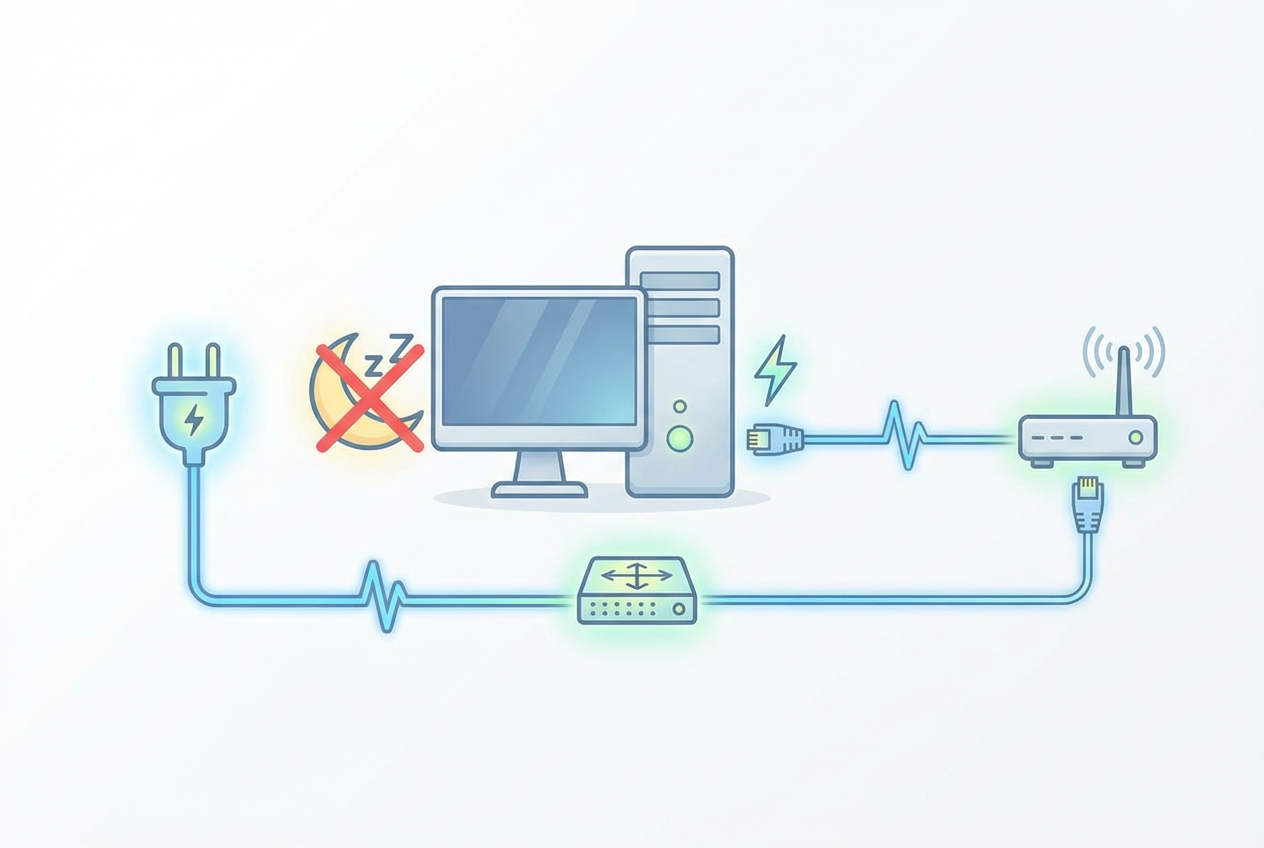
Locking your phone to the faster band helps, but the next “it was fine yesterday” problem usually comes from Windows blocking the PC-side streamer. When you install Apollo, run it once as an admin so it can register what it needs, then watch for the Windows Defender Firewall prompt and allow it on Private networks. If you miss that prompt, Artemis may never find the PC, even though Apollo looks “running.”
Keep your network details simple: verify your PC’s IP address won’t change often, and note the port Apollo listens on (write it down or screenshot it). If you have third‑party security software, add Apollo as an allowed app there too, because it can ignore the Windows prompt entirely.
Then handle wake behavior up front: set the PC to not sleep while plugged in, and decide whether you’re relying on Wake-on-LAN or just leaving it awake during play hours. Sleep issues feel like “disconnects,” and they waste the most time when you’re trying to pair.
Pairing Artemis to your PC: what to do when the code won’t appear (or the PC won’t show)
Sleep issues feel like “disconnects” because they also look like “pairing failed.” The usual pairing flow is simple: open Apollo on the PC, open Artemis on the phone, and you should see the PC show up with a short code to confirm. When that code never appears, don’t keep retrying blindly—check the two things that block discovery most often: network and permissions.
Start with the obvious: confirm the phone is on the same non-guest Wi‑Fi as the PC, and turn off any VPN on the phone. In Artemis, use manual add if it’s available and enter the PC’s local IP plus Apollo’s port you noted earlier. If manual add works but auto-discovery doesn’t, your router is likely filtering local discovery (common on some mesh setups), so you’ll lean on manual connections going forward.
If the PC still won’t show, go back to Windows: make sure Apollo is allowed on Private networks in Windows Defender Firewall, and that Windows thinks your current network is “Private,” not “Public.” Then restart Apollo and Artemis once; pairing states can get stuck after a failed first run, and you don’t want to debug controls until this link is solid.
Your first real session: launching a game and deciding how you’ll control it
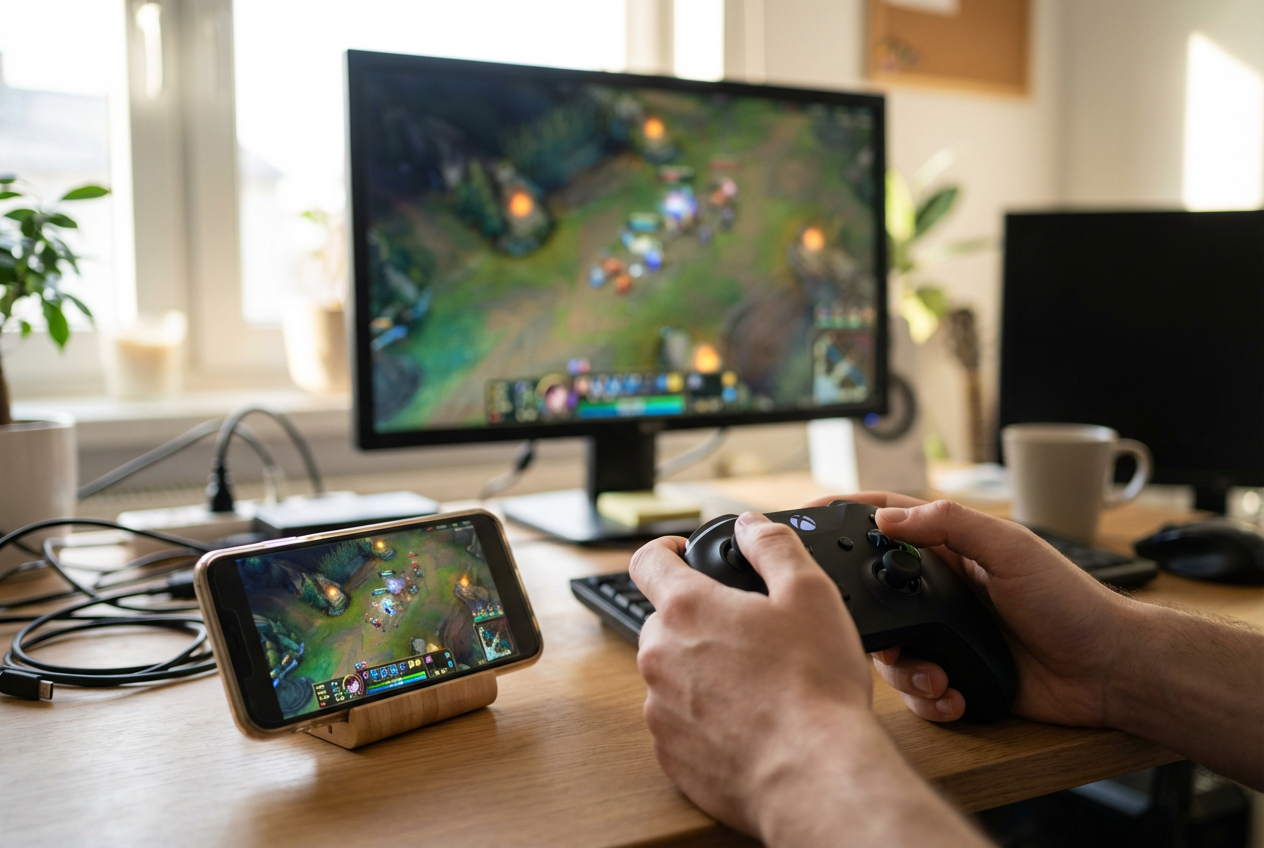
Once Artemis can see your PC consistently, the first real test is simple: start a stream, launch a game, and watch what happens when you touch anything. If you get a clean picture but inputs feel “floaty,” that’s usually a control choice, not a video problem.
Start the session from Artemis, connect to your paired PC, and launch one game you know well. Before you change any quality settings, decide how you’ll play: a paired Bluetooth controller, on-screen controls, or a mix (controller for movement, touch for menus). If you use a controller, verify the game reads it as a gamepad right away—some titles default to keyboard/mouse until you press a button.
If you’re not using a controller, enable Artemis’s touchpad/relative mouse mode (not absolute) so aiming doesn’t “snap” when your thumb lifts. Once controls feel predictable, then it’s worth tuning video.
When it’s almost good: quick tweaks for smoother video, lower lag, and fewer disconnects
Once controls feel predictable, the annoying part is when everything is “almost” good: it looks sharp until you pan the camera, or it feels fine until the first little hitch turns into a disconnect. Start by backing off ambition. Drop resolution one step (1080p to 720p), cap the stream at 60 fps, and pick a stable bitrate instead of chasing “max.” If that fixes it, you just proved your Wi‑Fi path can’t hold the higher load consistently, even if speed tests look great.
If input feels late, don’t only blame the phone. Turn off V‑Sync in the game, run the game in fullscreen (or borderless if exclusive fullscreen is flaky), and keep the PC from doing extra work: close overlays and any browser video. Then choose the faster codec your setup can decode cleanly—HEVC often helps at the same bitrate, but some phones stutter on it, so test both.
For disconnects, treat it like a power and network problem. Disable battery optimization for Artemis, keep the phone locked to 5 GHz/6 GHz, and stop the PC from sleeping during sessions. If it only drops when you walk to another room, you’re seeing roaming or band steering; lowering bitrate usually beats fighting the router.
A repeatable “grab phone, play” routine (and what to check the next time it breaks)
Lowering bitrate usually beats fighting the router, so build your routine around settings that stay stable. On the PC, open Apollo, confirm it’s “listening,” and leave the PC on Ethernet (or locked to 5/6 GHz) with sleep disabled during your play window. On the phone, turn off VPN, disable battery optimization for Artemis, connect your controller, then start Artemis and tap your saved PC entry.
When it breaks, don’t guess. If the PC doesn’t show up, check phone Wi‑Fi (not guest) and retry a manual add using the PC’s local IP and Apollo port. If video stutters, drop bitrate or resolution before changing codecs. If inputs feel wrong, confirm the game is seeing the controller, then re-check mouse mode.