Your keyboard suddenly isn’t typing right—what matters in the next 5 minutes
You’re in the middle of a doc or a meeting chat, and suddenly the keyboard starts missing letters, repeating a key, or typing the wrong characters. The next five minutes are about avoiding two common losses: losing work and burning time on random fixes that don’t match the symptom.
Start by treating it like a safety-and-signal problem. Safety means don’t restart yet, don’t pry keys off, and don’t install “driver updater” tools. Signal means you want one quick clue: is it one key, a small cluster (like WASD), or everything? That pattern usually points to either a physical issue (debris, liquid, worn switch) or a software/setting issue (layout, accessibility, app-specific behavior).
Once you know which pattern you’re dealing with, you can set up a reliable way to keep typing today and then test fixes in a calm, low-risk order.
Before you troubleshoot: save your work and set up a fallback you can type with
That “reliable way to keep typing today” is what buys you time to diagnose without panic. Save right now. If it’s a cloud doc, force a sync (look for the “saved” indicator). If it’s a local file, use Save As and put a copy somewhere you can find fast, like your desktop or a class/work folder.
Then set up a fallback input method before you restart or change settings. If you have one, plug in a USB keyboard or connect a Bluetooth one; even a cheap spare makes everything easier. No external keyboard? Turn on an on-screen keyboard (Windows: Settings > Accessibility > Keyboard; macOS: System Settings > Accessibility > Keyboard) so you can log in, type a password, and search for settings if the keys get worse.
The trade-off is speed: on-screen typing is slow, and Bluetooth pairing can be annoying if your password has “bad” keys. That’s why you set it up while you still can. With a fallback ready, you can do a 60-second pattern check without risking getting locked out.
Is it one key, a cluster, or the whole keyboard? (A 60‑second pattern check)

With a fallback ready, you can test without worrying that one wrong click leaves you unable to type your password. Open a plain text place first (Notes, Notepad, a blank email draft) so formatting and shortcuts don’t confuse the result.
Now check the pattern: press the problem key 10 times, slowly. If only that key misbehaves (misses, repeats, feels “mushy”), it usually points to debris, wear, or a stuck mechanism. If a small cluster fails (like several keys in one corner, or a whole row), that often means a spill path, a loose internal connection, or a damaged keyboard matrix—more “hardware-ish” than one crumb. If the whole keyboard is wrong (many keys, or letters becoming symbols), suspect a setting: keyboard layout/language, sticky keys, or an app capturing input.
One friction: don’t run this test inside a game, remote desktop, or Zoom chat box—those can remap keys. If the pattern changes between apps, that’s your next clue.
When the problem is ‘my keys type the wrong characters’
That “letters becoming symbols” pattern usually means the keyboard is sending the right signal, but something is interpreting it wrong. The most common cause is a keyboard layout or language switch. On Windows, click the language indicator near the clock (or try Win+Space) and make sure you’re on the layout you expect (like US). On macOS, open the Input menu in the menu bar (or System Settings > Keyboard > Input Sources) and confirm the right source is active.
If only some keys act “shifted” (numbers turning into symbols, or everything coming out in shortcuts), check modifiers. Tap Shift, Ctrl, Alt, and the Windows/Command key a few times. Then toggle Sticky Keys/Filter Keys off (Windows: Settings > Accessibility > Keyboard; macOS: Accessibility > Keyboard) in case they were turned on by accident.
One trade-off: remote desktop apps and keyboard-remapping tools can override layouts per app. If it’s correct in Notepad/Notes but wrong in one app, fix that app’s input settings before you assume the keyboard is failing.
If a key is stuck, repeating, or feels different
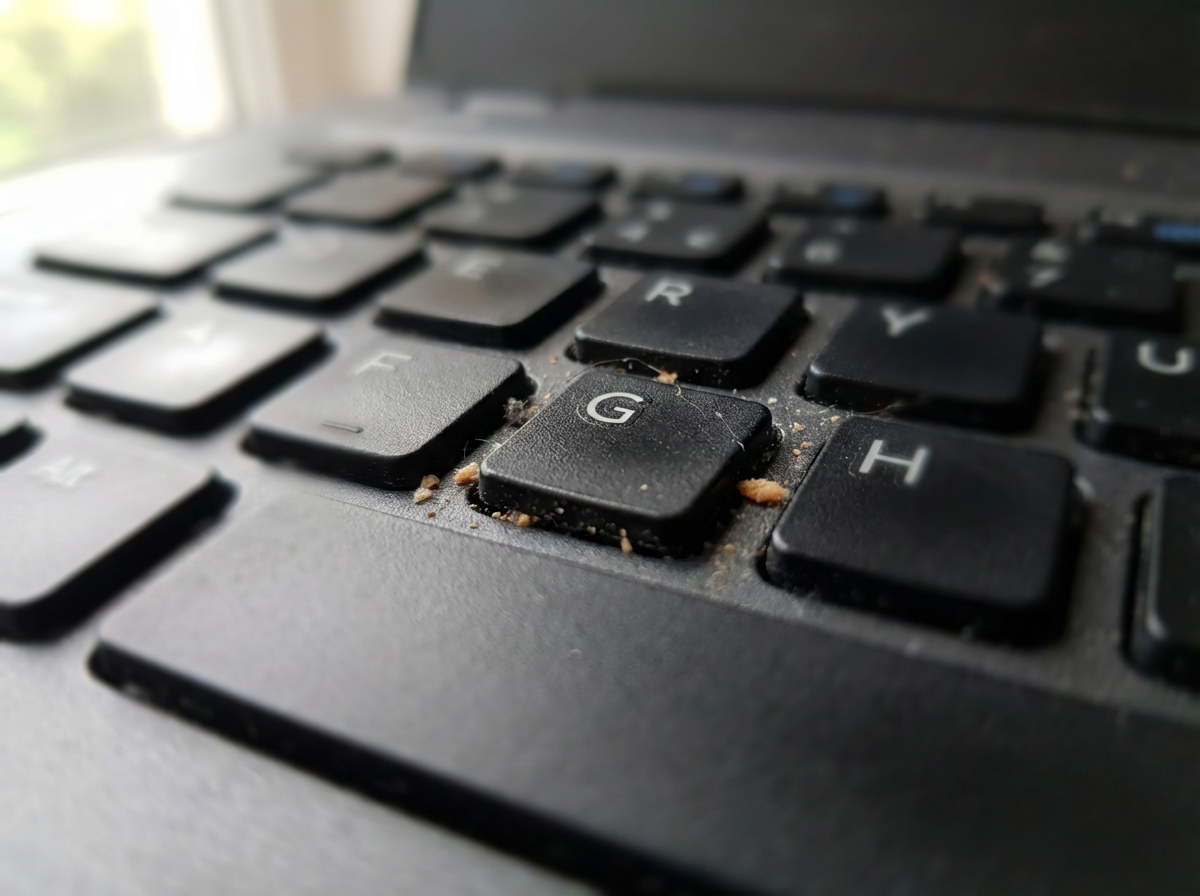
When one key repeats (“ssss”), won’t register unless you hit it hard, or suddenly feels crunchy, it usually comes down to something physical at the key: debris, a slightly dislodged keycap, or a worn switch. The quickest check is simple: compare that key’s feel and travel to its neighbors, then tilt the laptop and tap the area lightly to see if anything loose falls out.
Start with the lowest-risk cleanup. Power down fully. If your model allows it, disconnect power (and battery if it’s removable). Hold it in an inverted “tent” shape and use short bursts of compressed air around the key from a slight angle—don’t blast straight down. If you have 70%+ isopropyl alcohol, a lightly dampened cotton swab around the edges can lift sticky residue; keep liquid out of the gap.
A common friction: prying the keycap off “just to look” can snap scissor clips on many laptop keyboards, turning a small problem into a missing key. If the key is still repeating after cleaning, stop forcing it and use your fallback keyboard while you decide whether this is a replace-the-keycap job or a service/keyboard replacement situation.
It works in BIOS or on the login screen… but not in your apps
If the keyboard behaves normally on the login screen, but goes weird once you’re inside Windows/macOS and your apps, you’re usually looking at software—not crumbs. A quick way to prove it: type in two “plain” places (Notepad/Notes and your browser’s address bar). If it’s fine there but broken in Slack, Zoom chat, a game, or a remote desktop window, the app is likely remapping keys, capturing shortcuts, or using a different input method.
Start with the lowest-risk resets. Close the problem app completely and reopen it. If it’s a browser, try a private window with extensions disabled. If it’s remote desktop, check its keyboard settings (options like “send Windows key combinations” can change what you see). Then look for helpers: keyboard remappers, macro tools, clipboard managers, and language/input utilities running in the background.
The friction is time: you can burn an hour toggling random settings inside one app. If the keyboard is solid at login and in basic text fields, focus on per-app settings and background tools before you plan hardware repair.
Deciding it’s hardware: signs you should stop experimenting and plan repair
If the pattern stays the same no matter where you type—login screen, Notepad/Notes, and different apps—you’re probably past “one weird setting” and into hardware territory. The biggest tell is consistency: the same key (or the same group of keys) fails every time, even after a full shutdown and basic cleaning.
Plan repair when you see any of these: a whole row/column goes out (or comes back when you flex the chassis), keys that feel physically different (crunchy, loose, stuck down), repeated characters that won’t stop unless you avoid that key, or problems that started right after a spill or heavy moisture. Another strong sign is “it works on an external keyboard, but the built-in keyboard stays broken.” That points the blame at the laptop keyboard or its internal cable.
The trade-off: more experimenting can make it worse—prying keycaps can snap clips, and repeated compressed-air blasts can push grit deeper. If you need to type today, switch to your fallback, back up anything important, and treat the built-in keyboard as unreliable until you choose a keep-using plan, a scheduled fix, or a replacement.
A simple next-step map: keep using it today, schedule a fix, or replace
Treat the built-in keyboard as unreliable until it proves otherwise, then choose the least disruptive path that still lets you type today. If you can get clean input with an external keyboard or the on-screen keyboard, keep working and stop “testing” in the middle of deadlines. The friction is portability: an external keyboard turns a laptop into a two-piece setup, but it protects your work and your time.
Keep using it today if the issue is clearly software (wrong characters fixed by layout/accessibility changes, or only one app is weird) or a single key that behaves after a careful clean. Schedule a fix if a key keeps repeating, a cluster is dead, there was any spill, or the problem returns after a full shutdown—book service, order the right part, and back up before you hand it over.
Replace (or plan a top-case/keyboard replacement) when multiple keys fail, rows/columns drop out, the chassis flex changes behavior, or you rely on this machine daily and can’t risk another sudden lockout. For the next 24 hours, the rule is simple: type on the fallback, and make the built-in keyboard earn your trust again.