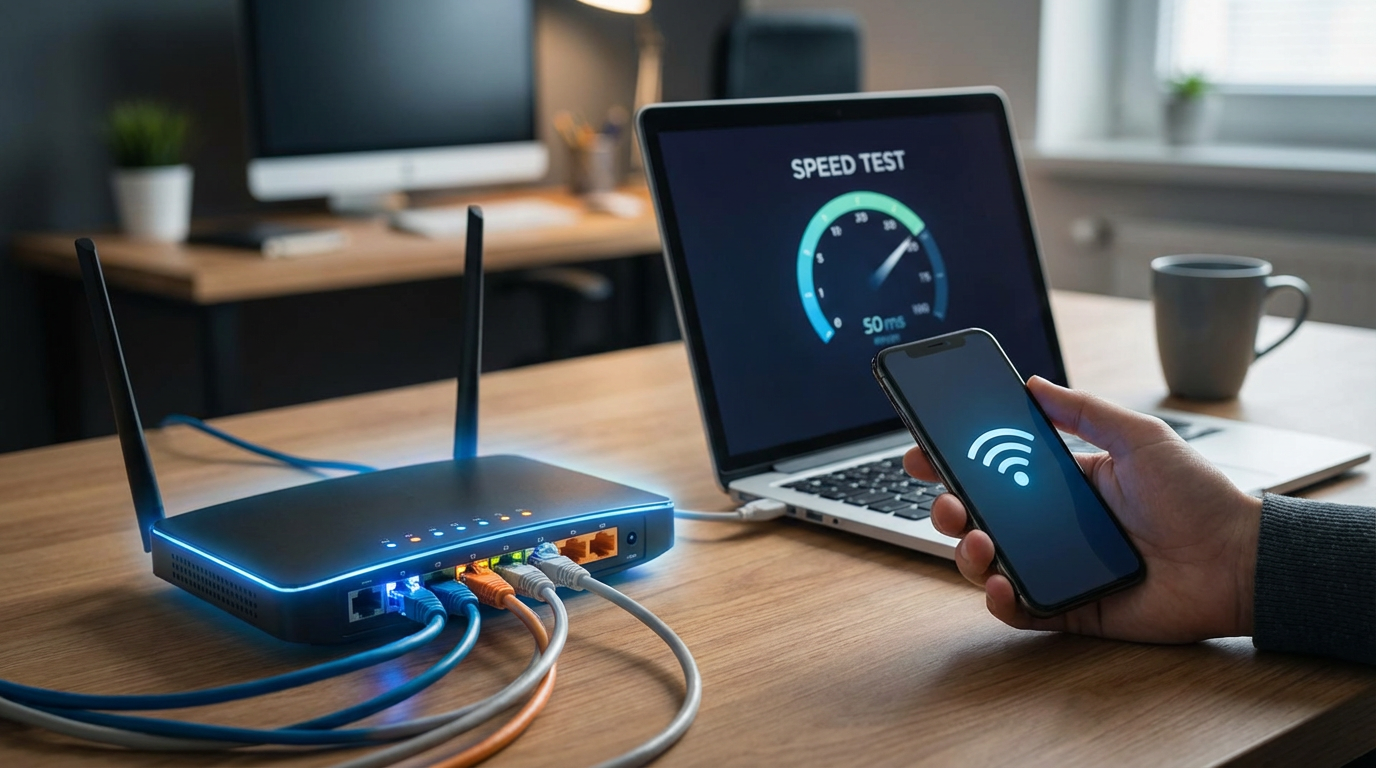
When the call drops: the 60‑second reality check
Your video call freezes, audio turns robotic, and you’re guessing: is it your Wi‑Fi, your internet line, or just your laptop acting up? In the first 60 seconds, the goal isn’t to “fix everything.” It’s to label the failure so you stop trying random resets.
Do three quick checks. One: glance at your modem/router lights—if the internet/WAN light is off or flashing a warning color, treat it like an upstream issue. Two: on your phone, turn off Wi‑Fi and load a simple page on cellular; if cellular works, the outage is likely inside your home. Three: if you can, move ten feet closer to the router and retry; if it improves fast, you’re dealing with Wi‑Fi, not the ISP.
That last step also sets up the most important question: is it only one device, or everything in the house?
Is it just one device, or everything in the house?
If your call drops on your laptop, the fastest way to avoid a bad rabbit hole is to check whether anything else is struggling at the same time. Grab your phone and one more device if you have it (tablet, work laptop, streaming stick). Try the same simple action on each—open a basic site or run a quick speed test. If every device is slow or disconnecting, focus on the shared pieces: Wi‑Fi, router/modem, or the ISP line.
If only one device misbehaves while others stay solid, stop blaming the router. Switch that device between Wi‑Fi and Ethernet (or between 5 GHz and 2.4 GHz) and see if the problem follows. Also check the obvious friction points: a “metered” Wi‑Fi setting, or a USB hub/adapter that’s flaky. The result tells you whether to troubleshoot the network—or the device—next.
Wi‑Fi or the internet line: the one test that stops the guessing
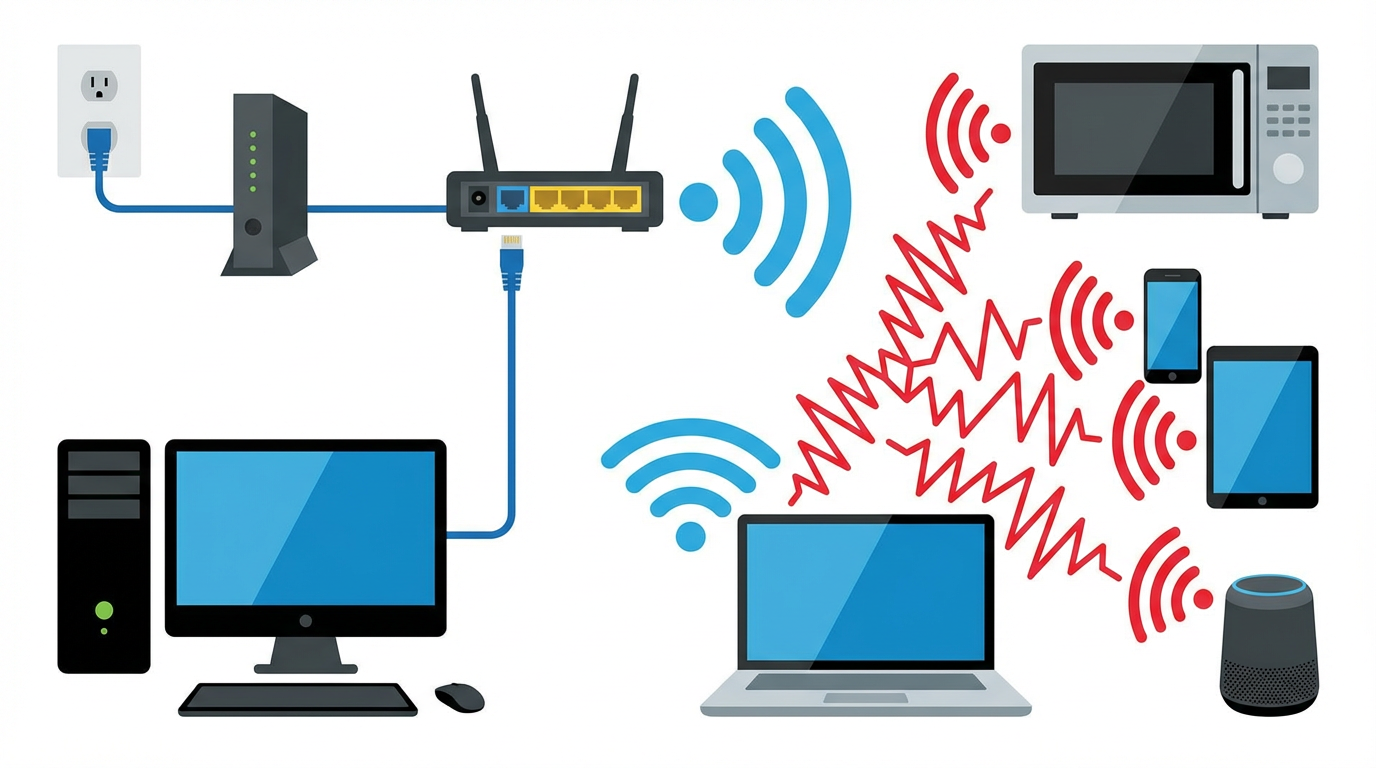
If multiple devices are struggling, the quickest way to stop guessing is to take Wi‑Fi out of the equation for two minutes. Plug one computer directly into the router with an Ethernet cable. If your laptop doesn’t have a port, use a USB‑to‑Ethernet adapter. Then do one simple thing: load a basic site and, if you can, start a short test call.
If the wired connection is steady while Wi‑Fi keeps dropping, your internet line is probably fine. Now you’re hunting Wi‑Fi range and interference problems, not calling your ISP. The practical trade‑off: you may “fix” it by working closer to the router today, but the real fix might be changing router placement, adding a mesh node, or moving devices off a crowded band.
If Ethernet also drops, stop moving around the house. You’re looking at the router/modem itself, the cable from the modem to the wall, or an ISP issue. Take a quick photo of the modem/router lights when it fails and note the exact time—those two details make your next steps (and any ISP ticket) move faster.
Why it’s fine in the kitchen but dies in your office
If Ethernet is steady but your office Wi‑Fi falls apart, you’re usually hitting a distance or obstruction problem, not a “bad internet” problem. The kitchen might have a clear path to the router, while your office sits behind two walls, a closet, or a bathroom. Those materials soak up signal fast. Another common pattern: your office device clings to 2.4 GHz because it reaches farther, but it’s crowded and slower; or it clings to 5 GHz because it’s faster, but it can’t punch through the walls.
Do one quick check: stand in the office and look at your Wi‑Fi signal bars, then walk the same device halfway toward the router and watch whether it jumps. If it does, don’t waste time rebooting. Your fastest “today” fix is to work closer, switch bands, or rotate the router so its antennas aren’t blocked by a TV, metal shelf, or filing cabinet.
The trade-off is convenience. If the office has to work, you’ll probably need a placement change or an added access point, and that’s where a reset can reveal whether your gear is part of the problem too.
The router/modem reset that fixes the right thing (and the clues it’s failing)
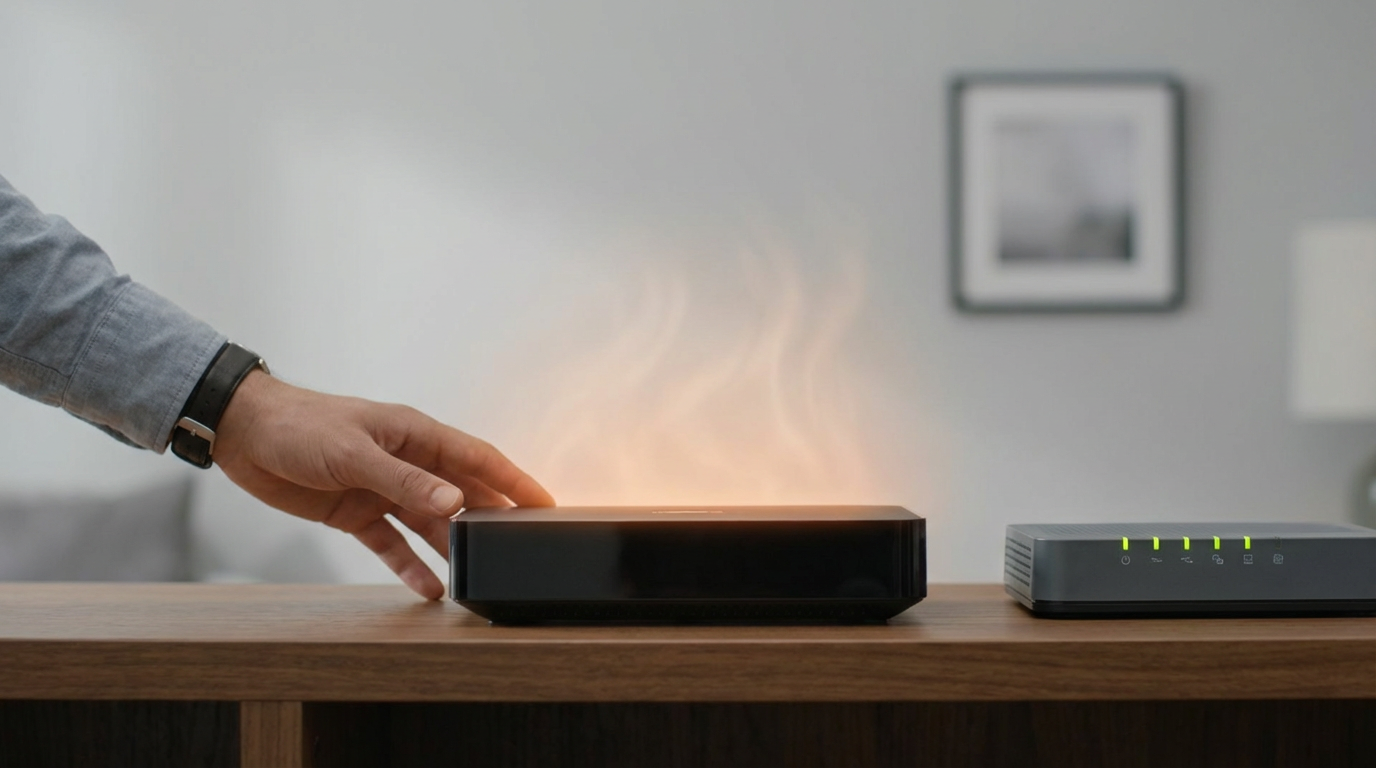
When you’re tempted to buy new gear, a clean reset is the fastest way to see whether the router/modem is actually the weak link. Do it in the order that clears the right state: unplug the modem and router (or gateway) from power, wait 60 seconds, plug the modem back in first, and wait until its “online” light is solid. Then power up the router and give it two minutes. That sequence forces a fresh connection from the modem to the ISP before your router starts handing out Wi‑Fi again.
Pay attention to what happens during and after. If the modem takes a long time to lock in, the “online” light never goes solid, or it’s fine for 5–10 minutes and then drops again, that points upstream (line, signal levels, ISP). If the modem stays stable but Wi‑Fi names vanish, settings reset, or the router gets hot and needs frequent reboots, the router is the likely culprit. Keep the failure time and a photo of the lights—you’ll use that in the next step.
It keeps dropping even on Ethernet—now what?
Those failure times and light photos matter most when the connection still drops on Ethernet. In that moment, treat Wi‑Fi as innocent and focus on the physical path: device → Ethernet cable/adapter → router → modem → wall.
Start with the dumb stuff because it’s common: swap the Ethernet cable, switch to a different LAN port on the router, and bypass any docking station or USB hub. If you’re using a USB‑to‑Ethernet adapter, try another one or a different USB port; flaky adapters fail exactly like “random internet.” Then check whether the router is rebooting (lights cycle, fan noise changes, Wi‑Fi disappears briefly). If it is, you’re likely dealing with power or hardware—try a different outlet, remove a power strip, and see if heat lines up with drops.
If the modem’s “online” light drops or blinks during the outage, call the ISP with exact timestamps and photos. If the modem stays online but the router resets, plan on replacing the router or gateway next.
After you’re back online: what’s actually worth upgrading or changing
Replacing the router only makes sense once you’ve seen a pattern. If Ethernet stayed stable but Wi‑Fi didn’t, spend money on coverage: move the router into the open, then add one mesh node or a wired access point near the office. The friction is backhaul—mesh works fastest when the node has Ethernet, but most homes don’t have it.
If Ethernet also dropped and your modem’s “online” light blinked, push the ISP to check the line and signal levels; your timestamps and light photos are the proof they can’t ignore. If the modem stayed online but the router kept rebooting or overheating, replace the router and its power supply, and update firmware before you reconnect work devices.