Your PC feels off—and Task Manager can’t explain why
You open a browser tab, a doc, maybe a game—and the PC just feels wrong. It’s slower than it should be, the fans ramp up, or everything stutters for a second and then “fixes itself.” You check Task Manager and it looks… fine. CPU isn’t pegged. Memory isn’t full. Disk usage jumps around with no clear culprit.
The problem is Task Manager is a dashboard, not a diagnosis. It won’t tell you if the CPU is throttling from heat, if a background process is spiking for half a second, or if your drive is quietly reporting bad signs.
You can guess and start uninstalling things, but that wastes time and can create new problems. A small set of free, trusted tools can show what Task Manager misses—without turning your PC into a science project.
Before you install anything: the 5 free tools and where to get them safely
Most people do the same thing here: they Google “best PC monitor,” click the first download button, and end up with an installer that tries to add a browser toolbar, a driver “updater,” or a trial antivirus. That’s how a quick check turns into a mess. Keep it boring: grab a short list of known tools, from the right places, and skip anything that wants to “optimize” your PC.
You only need five. Process Explorer (Microsoft Sysinternals) comes from Microsoft’s Sysinternals site. HWiNFO comes from hwinfo.com. MSI Afterburner (with its overlay) should be downloaded from MSI’s official page or a well-known mirror like Guru3D. CrystalDiskInfo comes from crystalmark.info. WizTree comes from wiztreefree.com. If you can’t clearly see the publisher, don’t install it.
Install one at a time, decline optional extras, and keep them in a simple folder so you can remove them later. Start with Process Explorer—because “random” slowdowns usually have a name.
When the PC ‘randomly’ slows down: Process Explorer shows what’s really chewing CPU/RAM
That “random” slowdown usually has a name—and it’s often a process that spikes for a few seconds and then drops before Task Manager makes it obvious. Open Process Explorer, then click the CPU column to sort. If the problem comes and goes, use View > System Information to watch CPU and memory history while you work like normal (browser, Teams, a big PDF, whatever triggers it).
When the PC bogs down, look for a process that jumps to the top (common ones: a browser tab, a cloud sync client, an update service). Hover a process to see a quick description, and check the Company Name so you don’t chase a random file in a weird folder. Right-click gives you practical moves: close the app, kill the process, or lower priority.
“End Process” fixes symptoms fast, but you can lose work or break an installer mid-run. Once you can name the culprit, you’re ready to answer the next question: is it load—or heat?
Heat, throttling, or just a heavy workload? HWiNFO answers the ‘why is it loud/slow after 10 minutes?’ question
“Is it load—or heat?” usually shows up the same way: the PC feels fine for a few minutes, then fans get loud, the system drags, and a game or Zoom call suddenly feels worse. If it’s just a heavy workload, clocks stay steady while temperatures rise to a normal working range. If it’s heat, clocks drop even while the workload stays high. That’s throttling.
Open HWiNFO and choose Sensors-only. Watch CPU (Tctl/Tdie) or CPU Package, Core Clocks, CPU Power, and any Thermal Throttling or PROCHOT flags. Let the PC run the thing that triggers the slowdown for 10–15 minutes. If temps climb and clocks fall, you found the “why.” If temps are fine but power and clocks are high, it’s simply doing work.
HWiNFO shows a lot, and laptop fan curves can make “loud” happen before danger. A clear throttle flag plus falling clocks is the signal to trust—then you can decide whether to clean vents, change a power mode, or keep digging into GPU load.
Stutters in games (or video edits): MSI Afterburner’s overlay makes GPU/VRAM bottlenecks obvious
“Keep digging into GPU load” usually means this: your game runs at 80–120 FPS, then drops to 20 for a second when you turn a corner, or your video preview plays smoothly until you add one effect. That pattern is hard to catch in a dashboard, but it shows up immediately with an on-screen overlay.
Install MSI Afterburner and its companion RivaTuner Statistics Server (RTSS). In Afterburner, go to Settings > Monitoring and turn on GPU usage, GPU clock, GPU temperature, VRAM usage, Framerate, and Frametime (set each to “Show in On-Screen Display”). Then run the game or editor and watch the stutter moment: if GPU usage is pinned near 100%, you’re GPU-limited; if VRAM is near full and frametime spikes, textures or resolution are too high.
The trade-off is clutter and temptation—too many stats make you chase noise. Keep the overlay small, and once you see a pattern, the next step is checking whether storage is the real bottleneck behind the “hitch.”
Storage ‘feels slow’—is it failing or just full? Use CrystalDiskInfo and WizTree to find out fast
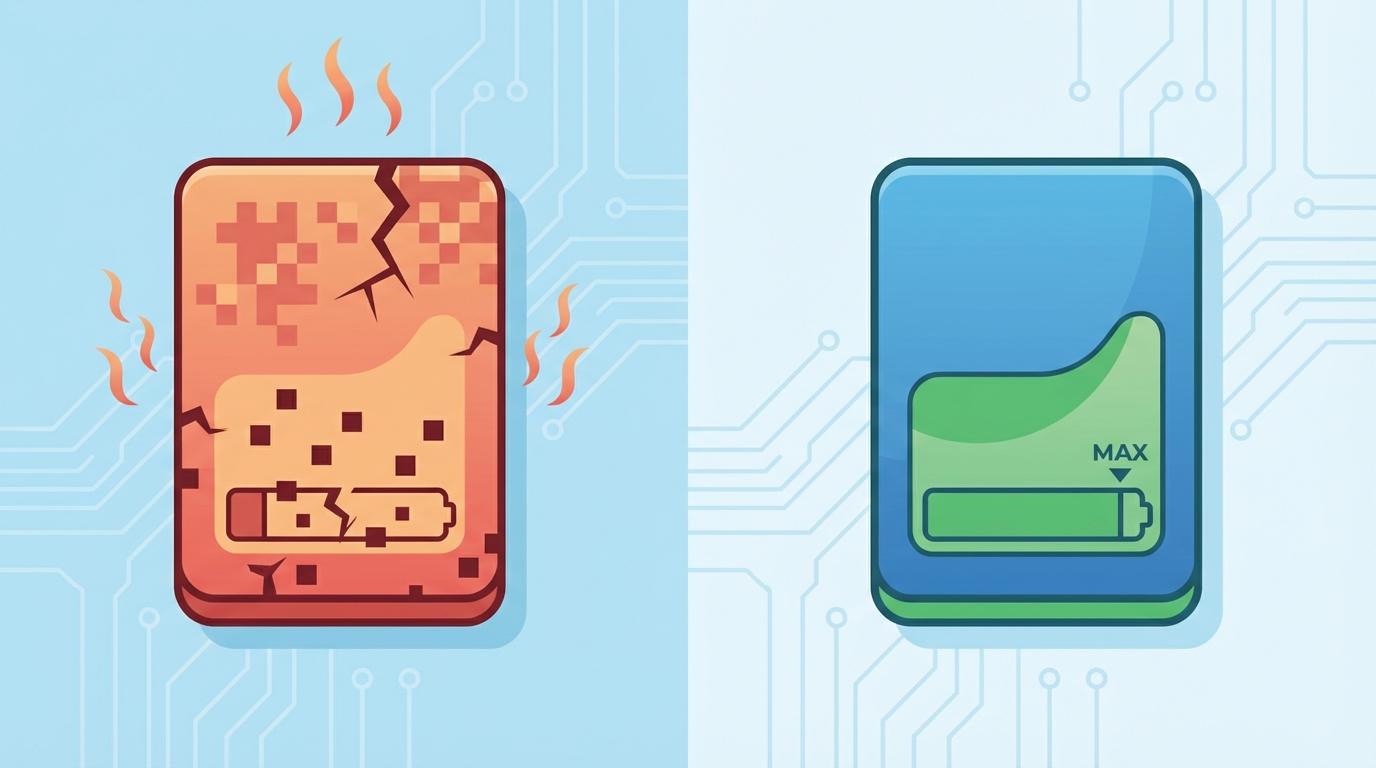
That “hitch” sometimes has nothing to do with GPU at all—it’s the drive trying to keep up. You notice it when apps take longer to open, Windows Search crawls, or a big game patch “finishes” and then spends 10 more minutes verifying. Two common causes look the same from the outside: the drive is unhealthy, or it’s simply too full to stay fast.
Start with CrystalDiskInfo. Look at the overall Health Status and Temperature, then scan SMART items for obvious red flags (reallocated/pending sectors, or lots of uncorrectable errors). If it doesn’t say “Good,” treat it like a warning light: back up important files before you do anything else. The friction is that “Caution” can still run for months—or fail tomorrow—so don’t negotiate with it.
If health looks fine, use WizTree to answer the boring question fast: “What’s eating my space?” Sort by size and you’ll usually find the real culprits (Downloads, old installers, a game library, a VM, or a massive cache). Once you’ve either protected your data or freed 15–25% space, the numbers you collected finally lead to a clean decision.
A simple end-of-checklist decision: what to do with the numbers you found
A clean decision usually looks like this: one graph pegs while the rest stay normal. If Process Explorer shows a repeat offender, uninstall it, disable its startup entry, or switch to a lighter alternative. If HWiNFO shows clocks dropping with throttle flags, clean dust, improve airflow, and try a less aggressive power mode before you buy parts. If Afterburner shows GPU at ~100% or VRAM near full during stutters, lower textures/resolution or cap FPS; upgrades only help if you’re consistently pinned.
If CrystalDiskInfo isn’t “Good,” back up first, then replace the drive. If it is “Good” but you’re under 15–25% free space, delete or move the big folders WizTree found. If nothing stands out, rerun the same test later with fewer apps open so the signal is clearer.