If Photoshop feels like “too much,” what are you actually trying to get done?
You open Photoshop to do something small—crop a photo, fix a shadow, add text for a flyer—and you’re staring at panels, modes, and tools you don’t use. Meanwhile the job still needs to get done, fast, and it needs to look “clean enough” to publish or print. That gap is the real problem: not “Photoshop vs free,” but the set of tasks you actually repeat every week.
If your work is mostly resize, simple cleanup, quick cutouts, and basic text, Paint.NET can feel like a better fit. If you rely on heavy layer workflows, advanced masking, or strict print control, the time you save upfront can come back later. The next question is simple: does the editor stay out of your way when you need a quick win?
Reason #1–2: When you need a quick win, does the editor stay out of your way?
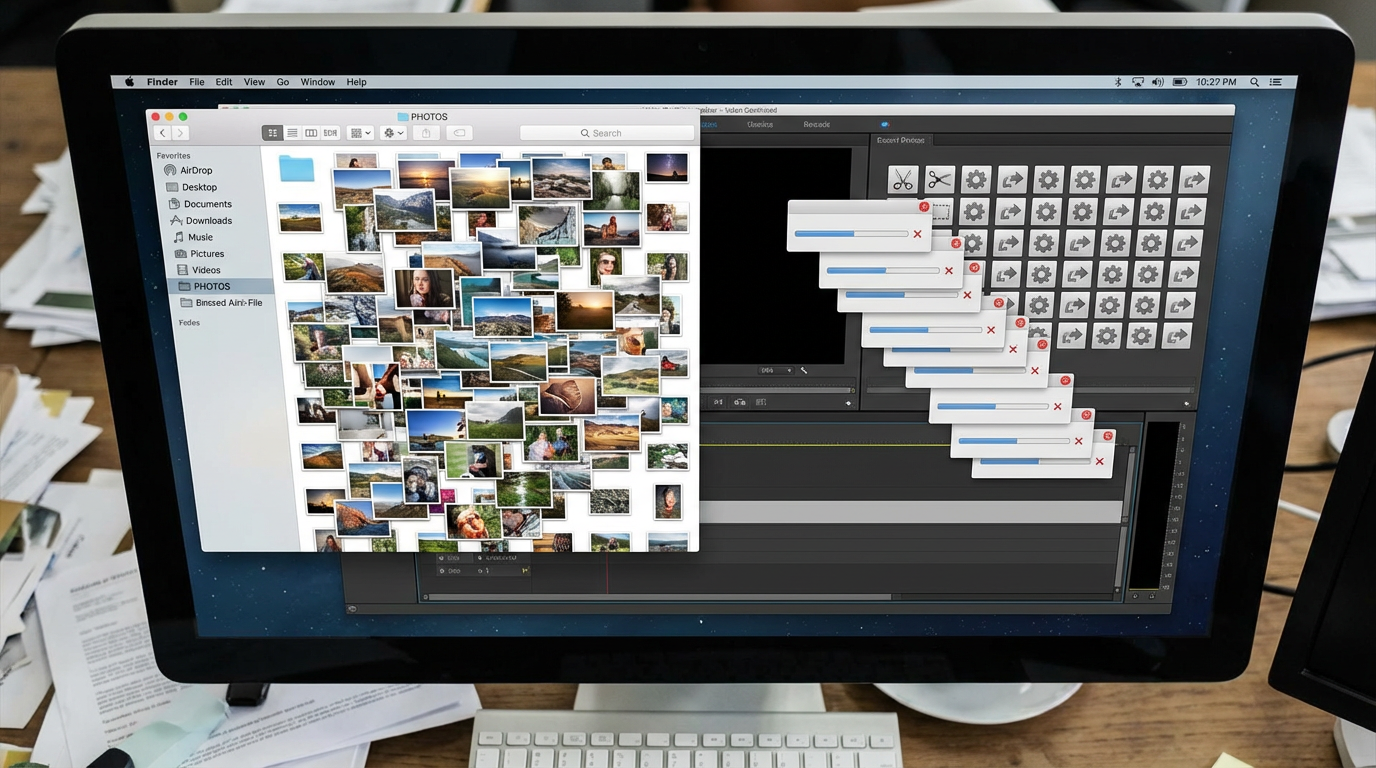
That “quick win” usually looks like this: you’ve got a photo that needs a tighter crop, a cleaner horizon, and a version that fits Instagram or a product listing. In Paint.NET, those basics are hard to mess up. The interface stays simple, common tools are easy to find, and most edits happen in a few clicks without asking you to pick a workflow first.
Reason #1 is speed-to-result. You can open, crop, resize, and export quickly, and the keyboard shortcuts feel familiar if you’ve used other Windows apps. Reason #2 is low friction. Fewer panels means fewer accidental mode changes and fewer “why did that happen?” moments.
The trade-off shows up when you need repeatable outputs. If you’re batching a whole folder, keeping exact export settings per platform, or relying on smart objects and non-destructive tweaks, Paint.NET’s simplicity can start to slow you down.
Reason #3: The moment you try layers—will it fall apart or hold up?
That slowdown usually hits the first time you try to combine things: a logo on a photo, a person cut out onto a new background, or two screenshots into one clean graphic. Paint.NET’s layers are real and generally stable—you can stack, reorder, change opacity, and use blend modes without the app feeling like it’s fighting you. For a simple composite or a quick “before/after” mockup, that holds up.
The friction is control. You don’t get Photoshop-style adjustment layers and layer masks out of the box, so “tweak just this area later” often becomes duplicate layers, erase-and-undo, or committing to a change sooner than you’d like. That’s fine for a one-off social post; it’s risky when you need to revise after feedback.
Once layers become the job—not just a helper—photo cleanup is where the gaps get louder.
Reason #4: Fixing real photos—can you clean things up without a pro toolkit?
Photo cleanup is where you notice whether “simple” still means “capable.” A common job is fixing a phone photo: brighten faces, pull back blown highlights, remove a stray spot, and sharpen just enough before posting. In Paint.NET, you can get surprisingly far with Levels/Curves, basic color adjustment, and effects like noise reduction or sharpening. For quick fixes, that’s often all you need.
The friction shows up when the problem isn’t global. If you need to dodge and burn on specific areas, correct a color cast only in shadows, or clean up skin without flattening texture, you run into the lack of built-in masks and adjustment layers. You can work around it with selections, duplicate layers, and undo history, but revisions get messy fast. If photo repair is frequent, you’ll want stronger retouch tools—or a plugin plan.
Reason #5: Adding text and shapes for social posts—does it feel limiting fast?
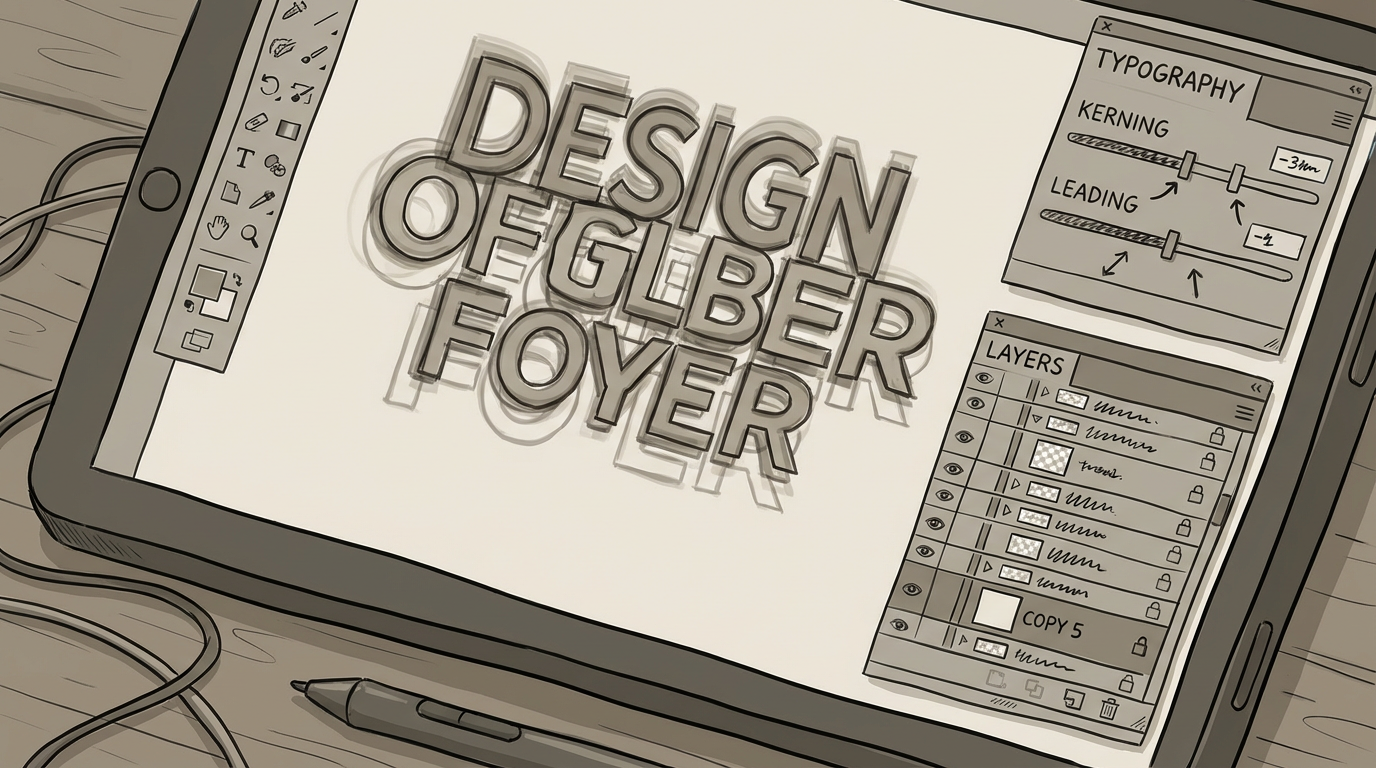
That “plugin plan” question gets real the moment you stop fixing photos and start building posts: a headline, a price tag, a badge, maybe a simple arrow or border. Paint.NET can handle straightforward text and shapes, and for a quick Instagram graphic or a YouTube thumbnail draft, it often feels faster than opening a heavier design app.
The limit shows up when you treat text like a design element, not a label. Kerning and line spacing controls are basic, multi-style text in one box is awkward, and you’ll often end up duplicating layers just to get an outline, shadow, or two-tone effect. Shapes work, but “make this pill button match our brand system” turns into manual nudging because there’s no true vector workflow.
If you mostly need clean, readable overlays, it’s enough. If you need templates, consistent typography, and easy revisions, you’ll feel the ceiling—and start looking at plugins or a dedicated layout tool.
Reason #6: “Free tools don’t grow with me”—but what about plugins?
That “templates and easy revisions” pressure is usually when people say free tools don’t scale—until they remember Paint.NET can extend itself. The plugin ecosystem is real: you can add extra effects, more blur and sharpen options, better noise tools, and even helpers that mimic missing pieces like outlines, glows, and some selection/retouch shortcuts. If you’re a student or small business owner, that can turn Paint.NET from “basic editor” into a daily driver without changing how you work.
The trade-off is consistency. Plugins vary in quality, can break after an update, and sometimes feel like separate mini-tools bolted on top. You also lose the “one predictable workflow” advantage that makes Paint.NET feel calm. If you’re willing to curate a small, stable plugin set, it grows nicely; if you need guaranteed features on every machine, the next constraint is cost—and what that cost buys besides new tools.
Reason #7: The cost question—what are you trading besides money?
That “besides new tools” part is where the money question gets real. Photoshop’s subscription isn’t just features—it’s predictable behavior across updates, shared files that open the same way on any computer, and fewer “why is this effect missing?” surprises when you’re on a deadline. If you collaborate, hand off layered files, or need to revisit a job months later, that reliability is what you’re paying for.
Paint.NET’s cost advantage is obvious: it’s free, fast, and it runs well on modest Windows laptops. But you often “pay” in time when work needs consistency—rebuilding a look because a plugin changed, redoing edits because you can’t tweak them non-destructively, or hopping between apps for text/layout. For many people, that trade is still worth it—until your week is more revisions than first drafts.
So the decision isn’t “free vs paid.” It’s whether Paint.NET covers 80% of what you do without creating a 20% tax in rework.
So… should Paint.NET replace Photoshop for you, or just cover 80% of your week?
That “20% tax” is the tell. If most of your week is single-image work—crop/resize, quick cleanup, simple composites, readable text overlays—Paint.NET can replace Photoshop without drama, especially if you standardize on a small, known plugin set. But if your week includes repeatable brand layouts, heavy retouching, or “change this later” edits after feedback, Paint.NET works best as the fast front-door and Photoshop (or another pro tool) stays in reserve.
The practical shift is to decide by revision pressure, not by feature lists. Pick two or three real jobs you redo often, time them in Paint.NET, then factor in the second pass. If the second pass stays clean, you’ve found your daily driver.