Before you buy anything: is Family Setup the right fit for your child (or dependent)?
You’ve probably hit the same wall: you want your kid to call, text, and share location, but you don’t want to hand over an iPhone just to make it work. Family Setup is Apple’s answer, and it can be a solid fit if your goal is basic communication, location tracking, and a few safety controls from your iPhone.
But it’s not a “mini iPhone on the wrist.” Some features work differently or won’t work at all, and that can frustrate older kids or a dependent who expects your exact Watch experience. If you need third-party apps, full messaging parity, or offline-heavy use, you’ll want to know that now—before you spend money on the wrong model or plan.
That decision starts with the watch itself: the right cellular model, the right size, and the right kind of battery and durability for how it’ll actually get used.
The watch choice that makes or breaks it: cellular, size, battery, and durability
“The right cellular model” is where most people accidentally buy the wrong thing. For Family Setup, assume you need a GPS + Cellular Apple Watch, not GPS-only, because the whole point is calls/texts and location without your iPhone nearby. If you buy the wrong model, there’s no software fix later—your only real option is a return.
Size matters more than it sounds. A too-large case slides around and makes taps and Siri flaky; too tight and it comes off at recess or during transfers. If you’re choosing between sizes, pick the smaller one for most kids, then spend the difference on a couple of extra bands so you can tighten or loosen fast.
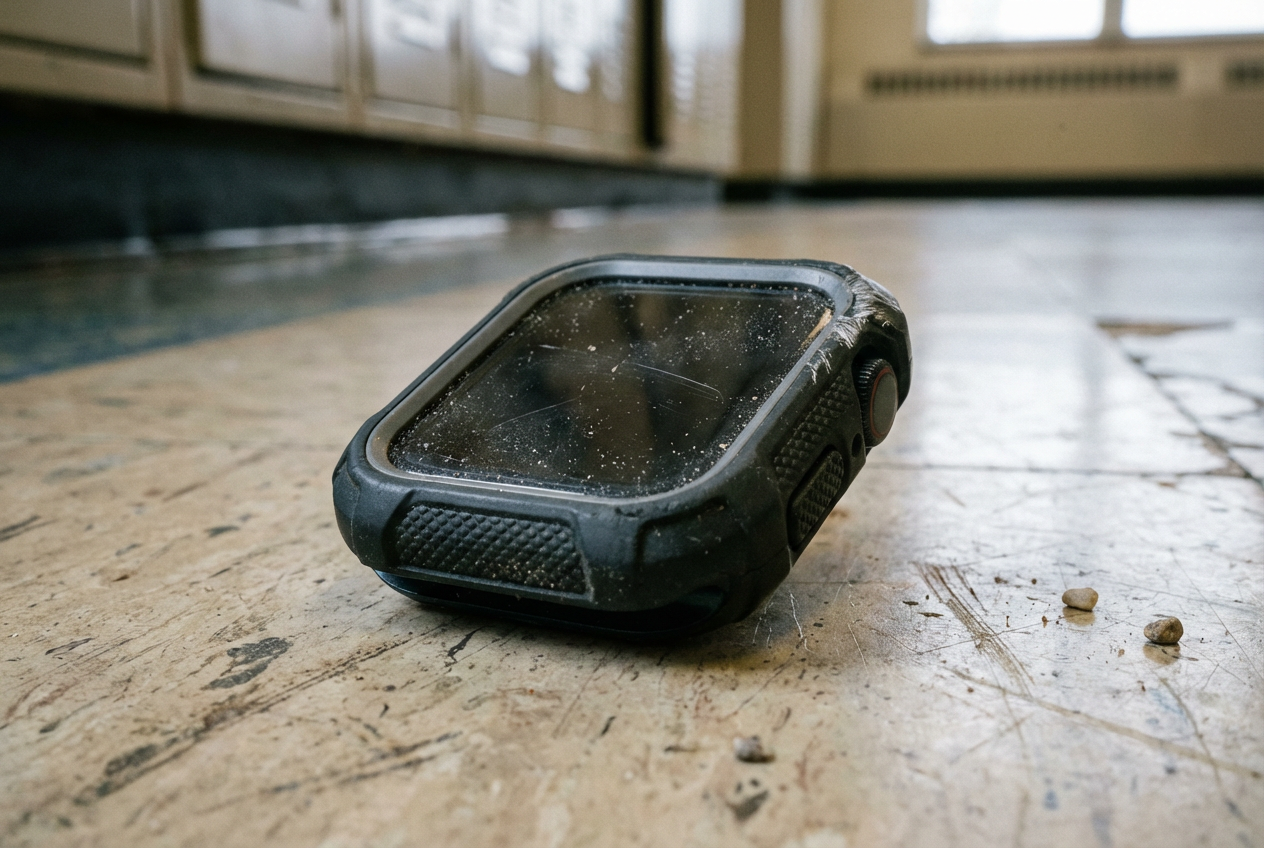
Battery and durability are the daily friction. Older models can turn “charge it nightly” into “charge it at dinner too,” and a basic bumper case can save you from the first hallway drop. Once you’ve picked the hardware, the next bottleneck is whether your carrier will even activate it.
Carrier reality check: can your plan actually activate an Apple Watch for a family member?
That activation step is where a lot of Family Setup attempts stall: you’ve got the right GPS + Cellular watch, but your carrier won’t add it the way you expect. Plenty of phone plans can add an Apple Watch line for your own watch, yet still can’t activate a watch for a family member without an iPhone. The result looks like a setup glitch, but it’s usually a plan or account limitation.
Before pairing day, check three things with your carrier: they support Apple Watch Family Setup (sometimes listed as “Apple Watch for your kids”), they can provision a separate watch line on your account, and your iPhone line is eligible to manage it. If you’re on a prepaid plan, a business account with restrictions, or a shared plan where you’re not the account owner, expect extra friction or a hard “no.”
Also plan for the monthly add-on and fees. It’s rarely expensive, but it’s a recurring cost you’ll notice. Once the carrier says “yes” in writing, you can prep the Apple IDs and permissions that usually trip people up next.
Account prep that trips people up: Apple ID, iCloud, and age-related permissions
That “yes” from the carrier is when people assume they’re done, then pairing fails because the accounts aren’t ready. Family Setup goes smoother when the watch user has their own Apple Account (Apple ID) you can manage, signed in to iCloud, with a working password you actually know. If you create the account five minutes before setup, plan for delays like verification codes, “account not active” messages, or needing to review terms.
Age settings matter, because they change what you’re allowed to turn on. If the child’s birthday is wrong, you can get blocked from features like location sharing, adding contacts, or using certain services, and it looks like a watch problem. Fix the birth date in the child’s account and Family Sharing before you touch the Watch app.
One more practical snag: two-factor authentication. Keep the organizer iPhone nearby, and make sure you can receive codes on your devices, not the watch user’s non-existent phone. Then pairing day is mostly taps, not troubleshooting.
Pairing day: what you’ll do on your iPhone (and what the watch user needs to do)
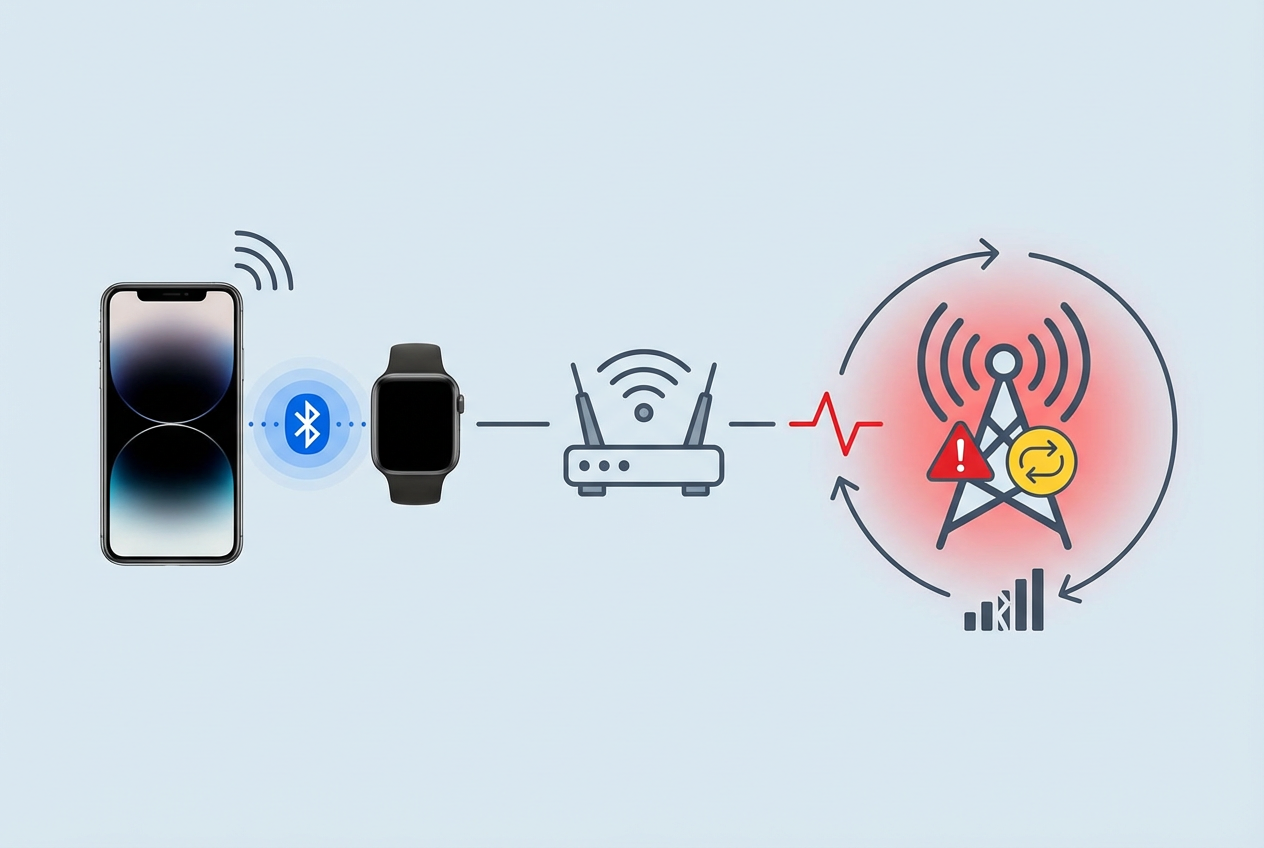
Those “mostly taps” go fast until you realize the watch can’t be set up on its own. You’ll do the work on your iPhone in the Watch app, and the watch wearer just needs to be there, wearing it, close to your phone, and willing to enter a passcode and answer a couple of prompts.
Start by turning on the watch, then open the Watch app on your iPhone and choose to set up a watch for a family member. Keep Wi‑Fi and Bluetooth on, and plug the watch into its charger if it’s under about 50%—a low battery can drag out carrier activation and force a restart. When the camera pairing screen appears, hold your iPhone over the watch animation, then follow the prompts to pick the family member, sign in with their Apple Account, and accept the iCloud terms.
The common friction is carrier setup: you may need your account PIN, a verification code, or to approve an “add line” step. If that part fails, stop and fix the carrier issue first—repeated retries can lock you into a loop you’ll only break by unpairing and starting over.
Set it up so it’s actually useful: calling, texting, location sharing, and safety controls
Once activation sticks, the watch can still feel “half set up” until you turn on the everyday basics. On your iPhone, open the Watch app, tap the family member’s watch, and confirm cellular is connected—then make a quick test call. If calls fail but cellular looks active, check Do Not Disturb/Focus and the watch’s volume; those two settings cause a lot of “it’s broken” moments.
For texting, decide upfront: keep it simple with a short Approved Contacts list, or allow broader messaging if your kid is older. Either way, add the must-have numbers first (you, other caregiver, school pickup) so the watch is useful on day one. Then set up location: in Find My, share the watch wearer’s location with you and confirm you can see live updates, not just a last-known pin.
Finally, lock in safety controls: a passcode, Schooltime (if it fits), and an Emergency SOS check-in. The next surprise is what still won’t behave like your Apple Watch, even after all this is “on.”
The “why doesn’t it work like my Apple Watch?” section: limitations, workarounds, and next steps
That “everything’s on” moment is usually when someone tries a familiar feature and hits a wall. Family Setup is built for calls, texts, and location, so expect gaps: some third-party apps won’t install, some notifications won’t mirror the way yours do, and messaging can feel different (especially with group chats, images, and threads). If your kid expects the same app lineup as your watch, you’ll get daily “why can’t it?” friction.
The workaround is to design around the basics. Keep Approved Contacts tight, use Schooltime when focus matters, and treat the iPhone Watch app as your control panel for changes. If the watch is constantly dying, swap bands for a better fit and make “charge at dinner” part of the routine. When those limits start blocking real needs, that’s your cue to upgrade the watch model, change carriers, or move up to an iPhone.