You want “set-and-forget” backups, but what are you actually protecting?
Your laptop is full of “stuff,” but only a small slice would actually hurt to lose. It’s usually the folders that keep your work moving: active project files, photos you haven’t sorted, the notes you rely on, and the one spreadsheet you update all the time. Everything else—old downloads, duplicate installers, half-finished exports—feels urgent until you imagine rebuilding it from scratch.
“Set-and-forget” only works when you know what the “it” is. Start by naming three buckets: (1) files you can’t replace (original photos, writing, client work), (2) files you could replace but don’t want to (course materials, configs, scanned PDFs), and (3) stuff you don’t care about (cache, downloads). The friction is real: if you try to protect everything, backups get slow, storage fills up, and you’ll stop trusting the system.
Once you know what actually matters, the next question gets simpler: where does that work live right now—one laptop, a phone, a cloud folder, or three places at once?
Which devices and folders are your real work surface right now?
Most people don’t lose “a computer.” They lose today’s work because it’s spread across a laptop, a phone, and one or two apps that quietly store files somewhere else. If you edit slides on your laptop, scan receipts on your phone, and jot notes in a web app, your backup plan has to follow that path, not your ideal setup.
Do a quick inventory of your real work surface. List the devices you touch every week (work laptop, personal laptop, phone, maybe a tablet) and then the two or three folders/apps where new files land by default: Desktop and Documents, your project folder, Photos/Camera Roll, Downloads, plus any “special” places like a local email archive or a music library you actually care about. The trade-off: the more places you let “current work” live, the easier it is to miss one—and the more likely you’ll assume a sync app covered it when it didn’t.
Circle the spots that change daily. Those become your non-negotiables, and they’ll shape how automatic your baseline backup needs to be.
When backups fail in real life: forgetting, unplugging, or “sync isn’t backup”

Those daily-change spots are also where backups fail in the most boring ways: you get busy, the drive isn’t plugged in, and the “automatic” part never happens. A manual copy to an external drive works exactly until the week you’re traveling, working late, or you simply forget. Then the laptop dies, and your last backup is from “sometime last month,” which is just another way of saying it won’t help.
The other common failure is assuming sync equals backup. If you delete a folder in a synced location, or an app overwrites a file, that change can sync everywhere fast. If ransomware hits a synced folder, the encrypted versions can sync too. Even without drama, it’s easy to save a file outside the synced folder and never notice until you need it.
What you’re trying to avoid is a plan that depends on perfect habits. That’s why your baseline needs to run without you thinking about it, and why the “second copy” needs to protect you from the same mistake repeating everywhere.
Pick your baseline: automatic local backup that runs even on busy weeks
That “without you thinking about it” part usually comes down to one decision: where will the always-available local copy live? For most people, the simplest baseline is an external drive that stays connected at your desk and backs up on a schedule, so a normal workday quietly produces a new restore point.
If you’re on a Mac, Time Machine to a dedicated external drive is the default for a reason: you plug it in once, pick the drive, and let it run. On Windows, File History or a full system image can play the same role, but only if the destination drive is consistently reachable. The practical friction is boring but real: if you use a small portable drive you toss in a bag, it won’t be there when the backup wants to run. A “desk drive” you don’t move is often the difference between weekly backups and “whenever I remember.”
Keep this baseline focused on your daily-change folders, not your entire digital life. You’re building a local safety net that keeps working on busy weeks—then you’ll add the “oh no” copy that still helps when the laptop and the desk drive fail together.
Now add the ‘oh no’ copy: offsite without cloud confusion
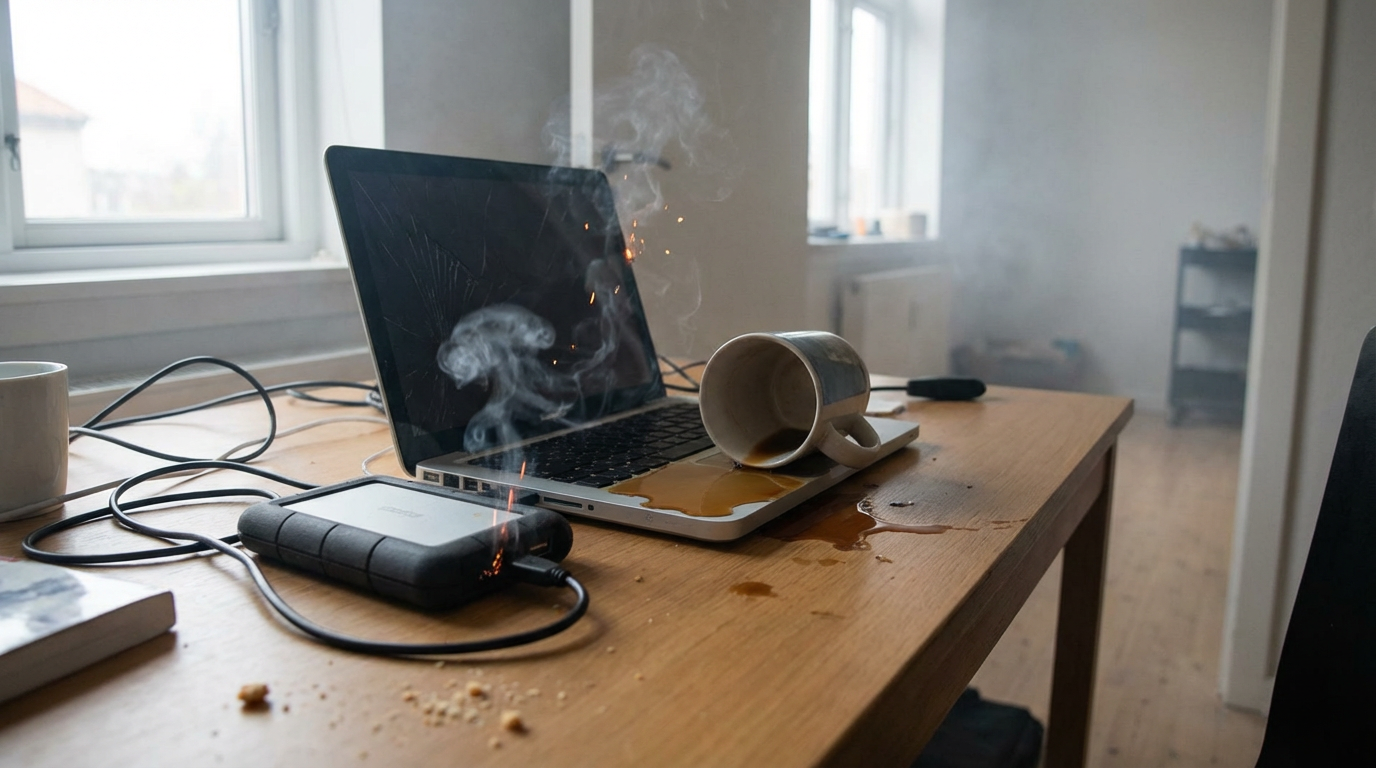
That “laptop and desk drive fail together” scenario is more common than it sounds: theft from a bag, a spilled drink, a power surge, or a small apartment fire. Your baseline local backup can’t help if it’s sitting right next to the laptop, so you add one more copy that lives somewhere else—offsite. This is the part people avoid because “the cloud” feels like both too magical and too messy.
Keep the rule simple: offsite is about location, not brand. You have two low-effort options. One is a backup service that runs in the background and keeps older versions (so an accidental delete doesn’t become permanent). The other is a second drive you rotate: once a week or once a month, plug it in, let it update, then store it at work, a friend’s place, or a locked drawer in a different building. The trade-off is speed versus responsibility: cloud restores can take time on slow internet, while a rotated drive is fast but easy to forget.
What to avoid: treating a synced folder as your only offsite copy. Sync is great for convenience, but your “oh no” copy should still exist even when you make a bad edit, delete the wrong folder, or a file gets overwritten.
How often should it run, and what should it keep?
That “bad edit, wrong delete” problem is really a timing problem: you don’t just need a copy, you need a copy from before the mistake. For your desk-drive baseline, daily automatic backups are the sweet spot for most people because they line up with how work actually changes. If you can’t keep the drive connected daily, aim for at least weekly—but treat that as a compromise, not the plan.
For the offsite “oh no” copy, pick a rhythm you’ll actually hit. If you rotate a second drive, monthly is realistic for many busy schedules; weekly is better if client work or school projects move fast. If you use a backup service, let it run continuously and don’t “pause to save bandwidth” unless you remember to turn it back on.
Retention matters as much as frequency. Keep short versions for quick rollbacks (hourly/daily for a week), then wider spacing for long regret (weekly for a month, monthly for a year). The friction you’ll hit is storage: longer history fills drives and can slow scans, so protect the folders that change and matter, not every old download.
The only two restore tests that make you trust your backups
“Hourly/daily for a week” sounds reassuring until you try to get one file back under pressure. The first restore test is simple: pick a real file you edited this week (a doc, slide deck, or spreadsheet), rename it to “TEST-restore,” then restore yesterday’s version from your local backup. Open it and confirm it’s the older copy, not the same file renamed. This catches the common failure where backups ran, but the folder you care about wasn’t included.
The second test is the “new device” test in miniature: restore a whole folder to a different location. Grab a small project folder (maybe 200–500MB), restore it from your offsite copy to a temp folder, and spot-check a few files. The trade-off you’ll feel fast is time: cloud restores can be slow, and rotated-drive restores depend on where the drive is. That’s exactly why you test now—so your plan matches your real deadlines.
Once those two restores work, you’re not guessing anymore. You’re ready to lock it in with a setup checklist you can finish in one sitting.
A backup plan you can keep: your 15-minute setup checklist and next check-in
That “one sitting” is the point: you want a plan that survives busy weeks without extra willpower. Set a 15-minute timer and do this: pick your daily-change folders, confirm they’re included in your local backup, and leave a desk drive plugged in where it can run automatically. Then choose your offsite “oh no” copy (backup service or rotated drive) and turn it on today, not “after this project.”
Write down three details somewhere you’ll find later: where the local backup lives, where the offsite copy lives, and how to do a restore in your tool (one sentence is enough). The friction you’ll hit is boring: drives fill up, subscriptions lapse, and “pause” buttons stay paused. Put a calendar check-in for 30 days from today to confirm backups are still running and repeat the two restore tests. After that, check quarterly.