That uneasy moment: “Why does my antivirus need so much access?”
You install antivirus for peace of mind, then the first popup lands: “Allow full disk access,” “install a browser extension,” “set as your network filter,” “run at startup.” On Windows it may ask for admin rights; on a Mac it can request permissions that sound like the same ones you’d deny a random app. That’s the uneasy moment—because the requests aren’t obviously about “virus scanning,” they’re about seeing and intercepting what your computer does.
Some of that access is normal. Real-time protection has to read files as they open, watch new downloads, and sometimes inspect web traffic for known bad links. The trade-off is that the same visibility can also create a stream of data about what you run, what you visit, and what gets flagged—especially if “cloud protection” or “usage analytics” is on by default. The hard part isn’t deciding whether you want protection; it’s figuring out what the product can actually see while it’s doing it.
What your antivirus can legitimately see during “protection”
That visibility mostly comes from where antivirus has to sit to react fast. When you open or download a file, real-time scanning can read the file itself, its name and location, its size, and simple fingerprints (like a hash) used to compare it against known threats. If the product blocks ransomware, it may also watch which apps try to change lots of documents at once, because that pattern matters more than the specific file.
Web protection works the same way: to stop a bad link before it loads, the antivirus can see the domain you’re going to, the URL path in some cases, and the file type being downloaded. If it installs a browser extension, it can also see what pages you load inside that browser. The practical friction is that “legitimate for protection” still produces logs—so the next question is whether those logs stay on your PC or get sent out under “cloud lookups,” “reputation,” or “diagnostics.”
When ‘scanned on your PC’ becomes ‘shared with our partners’

Those “cloud lookups” and “diagnostics” toggles are where a local scan can turn into a remote record. In a familiar moment—your antivirus flags a download or blocks a site—it often sends something out to confirm whether the file or link is known-bad. That can be as small as a hash and the antivirus version, or it can include the full URL, your IP address, device identifiers, and a slice of the file for “analysis” if the company says it needs more context.
The line usually gets crossed in the wording: “share with partners,” “service providers,” “for advertising,” “to improve offers,” or “for market research.” In plain terms, that means the same event log used to protect you can also feed tracking or profiling outside your machine. The trade-off is speed and accuracy versus data leaving your PC, and the catch is that “optional” often defaults to on.
What matters next is the settings screen: the switches that change what gets sent, and the labels that hide it.
The settings that quietly change the deal (and the words to look for)
That “settings screen” moment usually looks harmless: a couple of checkboxes during install, then a “Privacy” tab you never revisit. But those switches can flip your antivirus from “checks threats” to “collects behavior.” Common ones include “participate in product improvement,” “usage analytics,” “telemetry,” and “share suspicious samples.” If you turn on “extended” or “full” diagnostics, expect more than crash logs—often URLs, app names, and detection history.
The words that should slow you down tend to hide under softer labels: “personalized offers,” “relevant recommendations,” “third-party partners,” “service providers,” “may share,” and “legitimate interests.” Also watch for “web protection” options that say “search results rating” or “safe browsing,” because they can route your browsing through the vendor’s checks, especially if a browser extension is installed.
The trade-off is real: disabling cloud lookups can reduce how fast brand-new threats get caught. A safer first move is narrowing scope—turn off marketing/personalization sharing, keep basic cloud reputation on—and then verify what changed in the logs.
A quick reality check: signs your antivirus is collecting more than you expected
That “verify what changed in the logs” step often turns into a simple gut check: you didn’t do anything unusual, but the antivirus keeps talking to the internet. If you open its history and see entries for lots of everyday websites (not just blocked ones), frequent “reputation” checks tied to normal browsing, or a steady stream of “submitted” items, that’s a sign the product is building more of a behavior log than you expected. Another tell is when web protection only works if a browser extension is installed and granted “read and change data on all websites.” That’s broad access, even if the feature is marketed as safety.
The next red flag is in the account layer. If the antivirus pushes hard to create a login, sync “devices,” or enable a “security dashboard” that shows app activity and browsing alerts across machines, it usually needs a cloud record to do it. Pay attention to settings that separate “essential” from “optional” data: if “optional” includes URLs, app lists, or “feature usage,” you’re no longer just sending crash reports.
One practical friction: some products don’t show you what they upload. That’s why the safest move is to limit tracking first without turning off the protections that actually stop threats.
How to limit tracking without accidentally dropping your protection
Limiting tracking usually starts with the checkbox you’re most tempted to nuke: “cloud” anything. Don’t start there. Start with the stuff that’s clearly about marketing and profiling—turn off “personalized offers,” “recommendations,” “partner sharing,” and “product improvement/telemetry” set to “extended” or “full.” If there’s a choice between “essential” and “optional,” disable “optional” first, then check whether protection still runs normally.
Then narrow the web layer. If you don’t need search ratings or shopping “protection,” remove the browser extension and keep only URL blocking inside the antivirus (if it works without the extension). On Windows, also review “secure browsing” add-ons; on Mac, reconsider network filtering if it’s mainly for ad-style tracking defenses. The trade-off: you may lose “safer search” badges, but you keep core malware blocking.
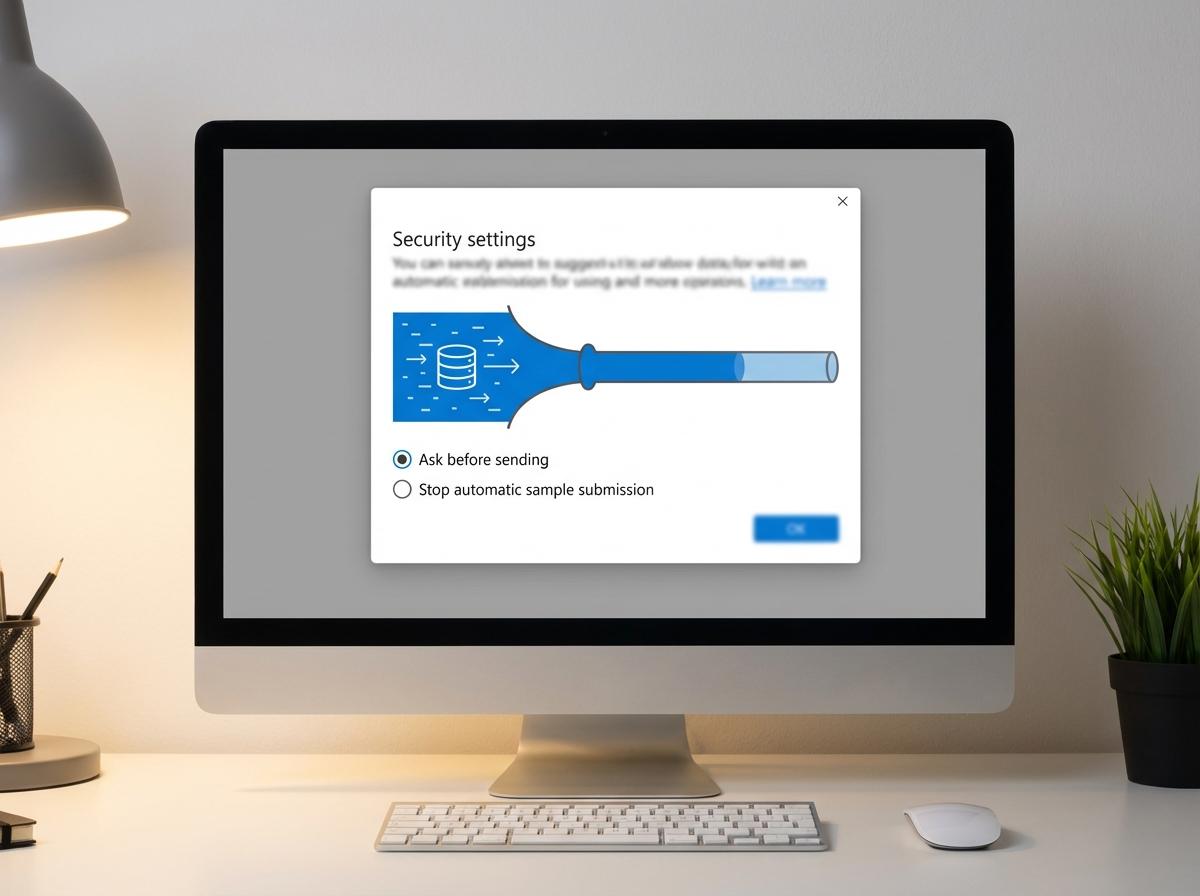
Only after that, reduce data leaving your PC: keep basic “reputation lookups” on, but turn off “submit samples automatically” and switch to “ask before sending.” Then run a normal week—browsing, downloads, updates—and see what features complain, because that tells you what actually depended on uploading data.
If you still don’t trust it: switching paths without regret
If a normal week still triggers “data needed for your safety” prompts, it’s reasonable to treat the trust problem as the problem. Before you uninstall, write down what you rely on (real-time file scanning, web blocking, ransomware protection, firewall), and take screenshots of any privacy toggles you changed so you can replicate the setup elsewhere.
Switching with less regret usually means simplifying, not stacking. On Windows, consider removing the third‑party suite and using Microsoft Defender plus your browser’s built-in phishing and download checks. On Mac, many people pair XProtect/Gatekeeper with careful downloads and occasional on-demand scans. The trade-off: you may lose extras like password managers or identity monitoring, but you also stop feeding a vendor account you don’t want to maintain.
Whatever you pick, do one final check: install, decline “extended diagnostics,” skip the browser extension unless you truly need it, then confirm you can turn off “optional” sharing without breaking protection.