You’ve been told “use Google”—what that changes when you log in
At work, “use Google” usually means you shouldn’t type a Dashlane Master Password at all. Your company has set Dashlane to trust Google Workspace for identity, so the “right” login starts by choosing a Google/SSO sign-in option and then completing the Google prompt in your browser or app.
The catch is that Dashlane still looks like a normal login screen at first, and it will accept the wrong path. If you enter an email that isn’t your company address (or you used Dashlane personally before), you can land in a password flow that will never work for your SSO account. The fastest win is confirming which work email Google uses before you tap anything.
Before you tap anything: which work email is Dashlane expecting?
That “fastest win” usually comes down to one thing: the exact work email address tied to your company’s Google Workspace. In many companies, people have a few real-looking variants (first.last@, firstinitiallast@, an alias, or a recently changed name). If you start with the wrong one, Dashlane can’t route you into the SSO flow, and you’ll end up staring at prompts that don’t match what your admin expects.
Before opening Dashlane, check which Google account is active on your device. On the web, look at the profile icon in the top-right of any Google page. On mobile, open Gmail or Google Drive and confirm the account shown. Use that exact address in Dashlane—don’t swap in an alias unless your company uses it as the primary login.
Once you’re sure of the email, the only remaining friction is finding the right “Sign in with Google/SSO” button on the screen you’re on.
Finding the “Sign in with Google/SSO” option on your device (web, desktop, mobile)
That friction usually shows up as a login screen that looks the same no matter which path you need. On the web app, look for a secondary button or link under the email field labeled “Sign in with Google,” “SSO,” or “Single sign-on.” If you only see a Master Password box, back out to the first step (email entry) and re-enter your work email to trigger the SSO option.
In the desktop app, the SSO choice is often on the first screen after you enter your email, not on the Master Password screen. If you’re already being asked for a Master Password, use “Back” or “Change account” and start over with the work email, then choose Google/SSO when it appears.
On iOS/Android, the SSO path may be tucked behind “Use single sign-on” or “Continue with Google.” The trade-off: it usually opens a browser tab or embedded web view, so being signed into the wrong Google account there can derail the flow.
What ‘successful’ Google SSO looks like (and what to do when it loops back)
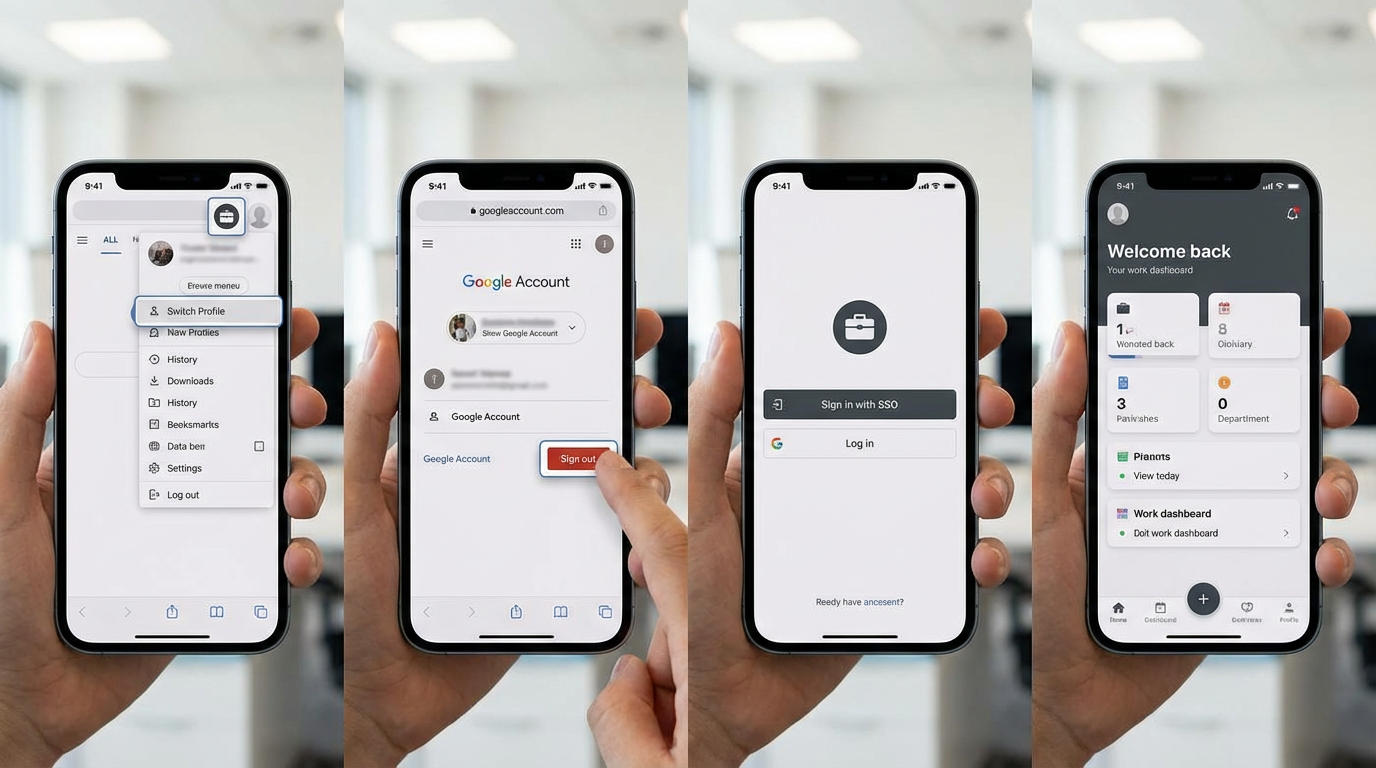
That browser handoff is where a “good” SSO login usually shows itself. You tap Google/SSO, a Google sign-in page (or account picker) opens, you confirm the exact work account, and after you approve any prompt, you land back in Dashlane already unlocked or finishing a brief “setting up your account” step. You should not be asked to create or enter a Dashlane Master Password during this path.
The common failure is a loop: you finish Google sign-in, then Dashlane drops you back at the email screen or asks you to pick a method again. When that happens, assume the browser session used the wrong Google account or a blocked web view. Switch to the work profile in that browser, sign out of other Google accounts, then retry from Dashlane. If it still loops, try the same flow on the web app to confirm SSO works at all before you troubleshoot the device.
Dashlane is asking for a Master Password—did you pick the wrong path, or is your account non‑SSO?
If Google sign-in “worked,” but you’re now staring at a Master Password box, you’re usually on the wrong branch of the login flow. The most common way this happens is simple: Dashlane didn’t detect an SSO-eligible work email at the start, so it dropped you into the standard Master Password path.
Back up to the first step where you enter your email (use “Back,” “Change account,” or log out), then type the exact work address that’s active in Google on that device. If you see “Sign in with Google,” “SSO,” or “Single sign-on” again, choose it and complete the Google prompt. Don’t try to “guess” a Master Password here—SSO accounts typically don’t use one, and repeated attempts can waste time or trigger lockouts.
If you never get an SSO option for that work email, treat it as a real signal: either your Dashlane account for that address was created as non-SSO before your company enabled SSO, or SSO isn’t turned on for your team yet. That’s where the next set of blockers shows up.
When Google sign-in succeeds but Dashlane still won’t unlock: the usual culprits
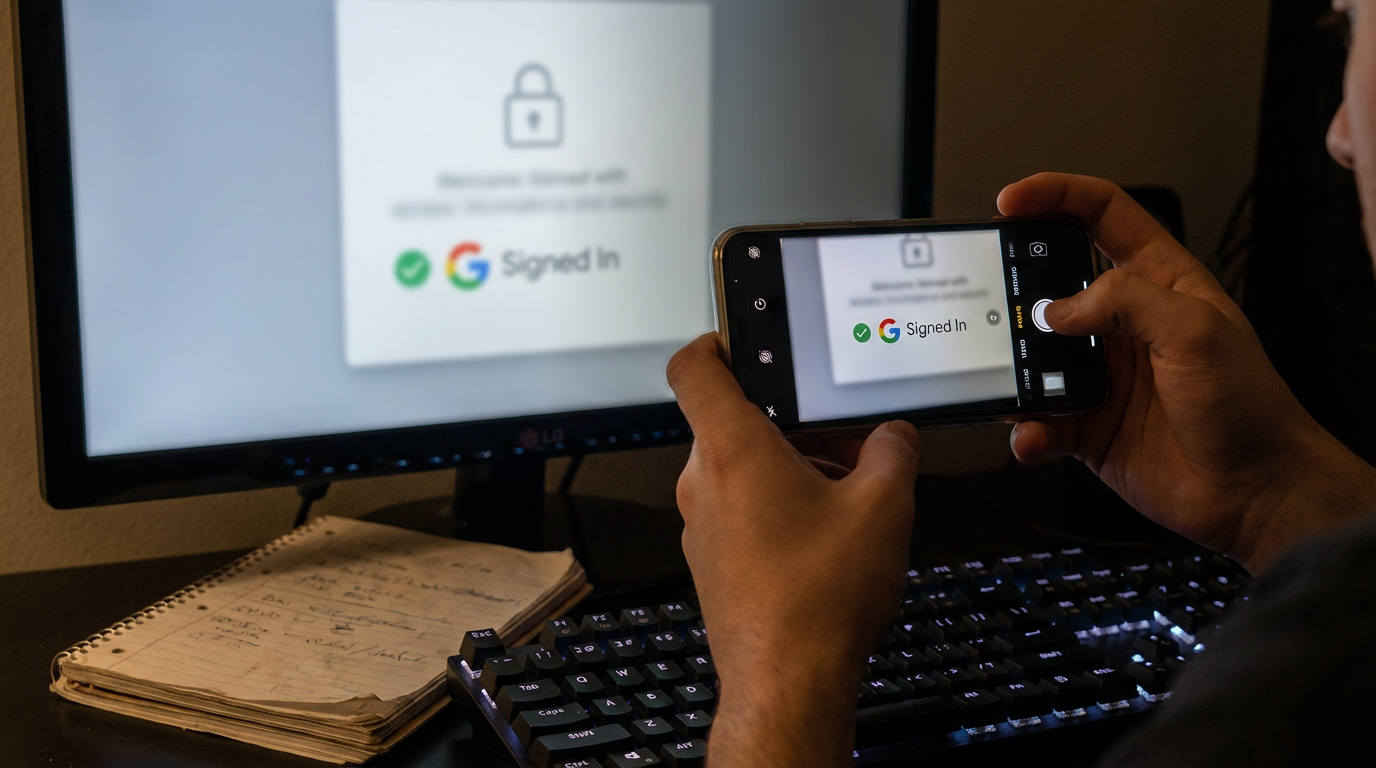
Those blockers often show up after Google accepts your login, but Dashlane stays locked, keeps spinning, or lands on a blank “Welcome” state. In day-to-day terms, you proved your identity to Google, but Dashlane didn’t finish linking that session to the right workspace account.
Start with the most common mismatch: Google signed you into one account, while Dashlane is trying to unlock another. On shared browsers and phones with multiple Google profiles, the account picker can quietly switch. Sign out of extra Google accounts in the browser/web view, then retry from Dashlane. If you’re on mobile, also disable ad blockers briefly; they can block the web handoff that returns you to the app.
If the unlock still fails, check timing and policy. A new SSO rollout, a recent email change, or required admin approvals (like device compliance) can make Google succeed while Dashlane refuses access. At that point, your fastest move is to capture what you see on-screen and escalate with specifics.
If you can’t get in right now, here’s the fastest next step (and what to send support/admin)
That’s when speed matters more than guessing. Stop retrying different emails or passwords and switch to an escalation path that’s easy to verify: try the same Google/SSO sign-in once in the web app in an incognito/private window. If it fails there too, it’s likely account or policy, not your device.
Send your admin or Dashlane support: the exact work email you used, the device + app (web/desktop/iOS/Android) and version, the time and timezone of the attempt, where it fails (loop, Master Password prompt, spinner, blank screen), and a screenshot of the last error (plus any Google “account picker” screen). Ask them to confirm SSO is enabled for your workspace and that your email is in the right Dashlane account.