You installed a new browser—why links still keep opening in the old one
You install Chrome, Firefox, Brave, or Edge, start using it right away, and assume every link you click will follow. Then you tap a link in an email, a chat app, or a document—and it still opens in the old browser. That mismatch is normal, because most links don’t follow the browser you happen to be using. They follow the device’s “default browser” setting.
The confusing part is that browser settings often control only what happens inside that browser. The operating system controls what happens when another app hands off a web link. Some systems also split defaults by link type (http vs https), or let certain apps override your choice. That’s why the change can feel like it didn’t “stick.”
Before you change anything, make one quick decision: are you trying to change the device-wide default, or just the browser’s own behavior?
Before you dive in: are you switching the device default, or just the browser’s internal settings?
Most people open the new browser, see a prompt like “Set as default,” click it, and expect the job to be done. Sometimes that button only changes what happens inside the browser (like which app opens when you type a link into its address bar). It doesn’t always change what happens when Mail, Messages, Word, or Slack sends a link out to the system.
The device-wide default is the traffic cop. On Windows and Android, it can be split by app or link type, so one piece can still point to the old browser. On iPhone/iPad and Mac, the switch is more centralized, but some apps still have their own “open in…” choices. If you only change the browser’s internal setting, links from other apps can keep going elsewhere—so the next step is to set the system default on your device.
Windows 10/11: choosing a default browser when the setting doesn’t seem to ‘stick’
On Windows, you can set your new browser as default, close the Settings window, click a link in email—and still watch Edge or the old browser open. That usually means Windows accepted part of the change, but another “default” is still pointing elsewhere, or a specific app is overriding what you picked.
Go to Settings > Apps > Default apps. In Windows 11, search for your browser by name and choose Set default. In Windows 10, pick your browser under Web browser. If links still ignore it, open your browser’s entry and check the file types and link types (like HTTP and HTTPS), then switch any that still show the old browser.
The trade-off: Windows can remember “per-type” choices, so you may have to fix more than one. Once it’s set, do a quick click-test from Mail or a chat app to confirm the handoff is working.
On a Mac, the change lives in one place—if you know where to look
That quick click-test usually feels cleaner on a Mac, because macOS keeps the “which browser opens links from other apps” choice in one system setting. If you only clicked “Set as default” inside the browser, links from Mail or Messages can still follow whatever macOS thinks is the default.
Open System Settings (or System Preferences on older macOS), go to Desktop & Dock, then find Default web browser and pick your new browser. Close the window, then click a link from a non-browser app to confirm it hands off correctly.
The common friction: some apps still use their own built-in web view or an “Open in…” choice, so a few links may not follow the default every time. If it’s only happening in one app, look for that app’s link-handling setting next.
iPhone/iPad: when Apple allows the switch, and what can block it
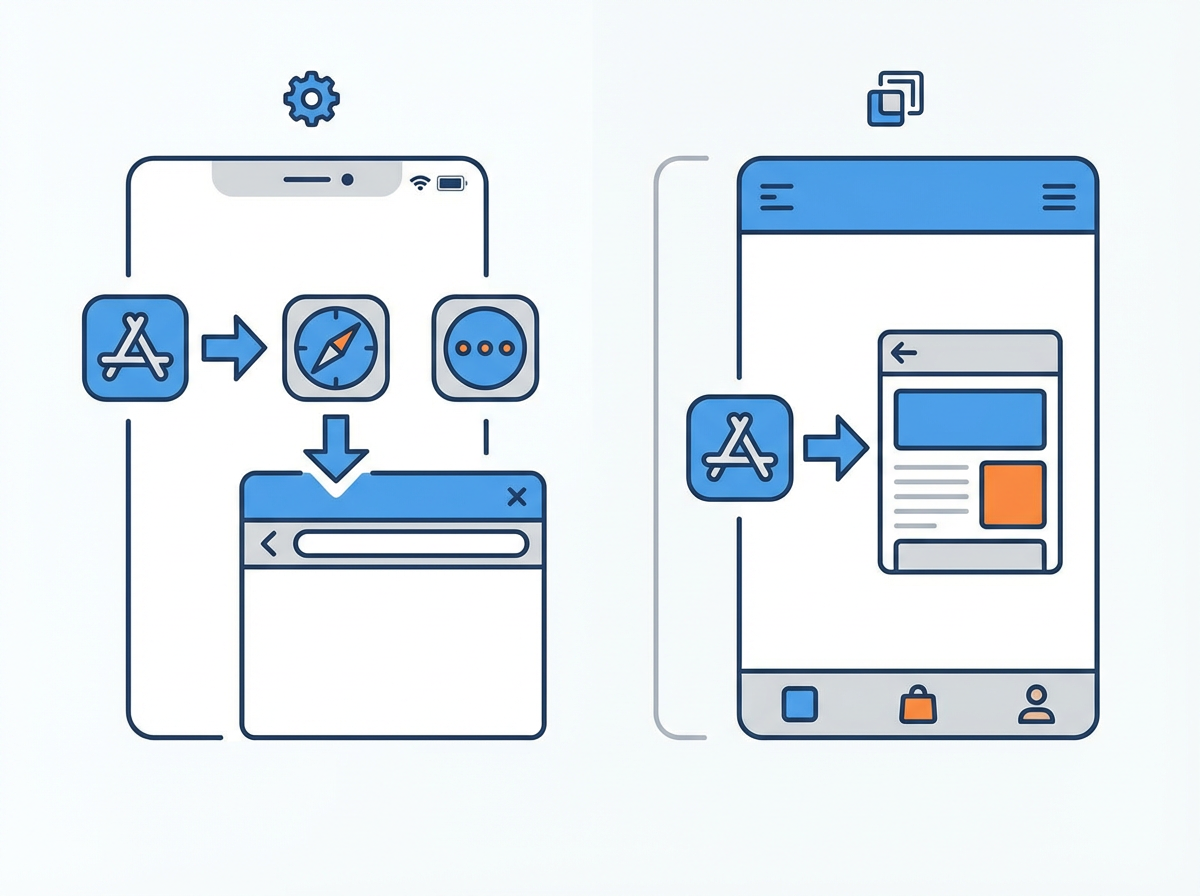
That “only happening in one app” pattern shows up a lot on iPhone and iPad, because iOS lets you set a default browser—but only if the browser supports it and the app handing off the link actually uses the system default.
To switch it, open Settings, scroll to your new browser’s app (Chrome, Firefox, Brave, Edge), tap it, then tap Default Browser App and choose it. If you don’t see Default Browser App, update the browser in the App Store and check again; older versions may not offer the switch.
If links still open in Safari, look for an in-app choice like “Open in Safari” or an embedded web view (common in social and shopping apps). The trade-off is convenience: those built-in views load fast, but they can ignore your default and keep logins separate.
Android feels different depending on your phone—here’s how to find the right Default apps screen
That “opens in a built-in view instead” issue is common on Android too, but Android adds another twist: the path to the default browser setting changes by phone brand and Android version. You might see Apps, Apps & notifications, or Apps management, and the “defaults” page may be labeled Default apps, Choose default apps, or Set default apps.
The fastest route is usually Settings > Apps > Default apps > Browser app, then pick your new browser. If you can’t find it, use the Settings search bar and type “default” or “browser app.”
One practical friction: some browsers also need permission to “open supported links.” If links from certain apps still ignore your choice, open Settings > Apps > (your browser) > Open by default and make sure it’s allowed.
Test it in 30 seconds—and what it means when some links still open elsewhere
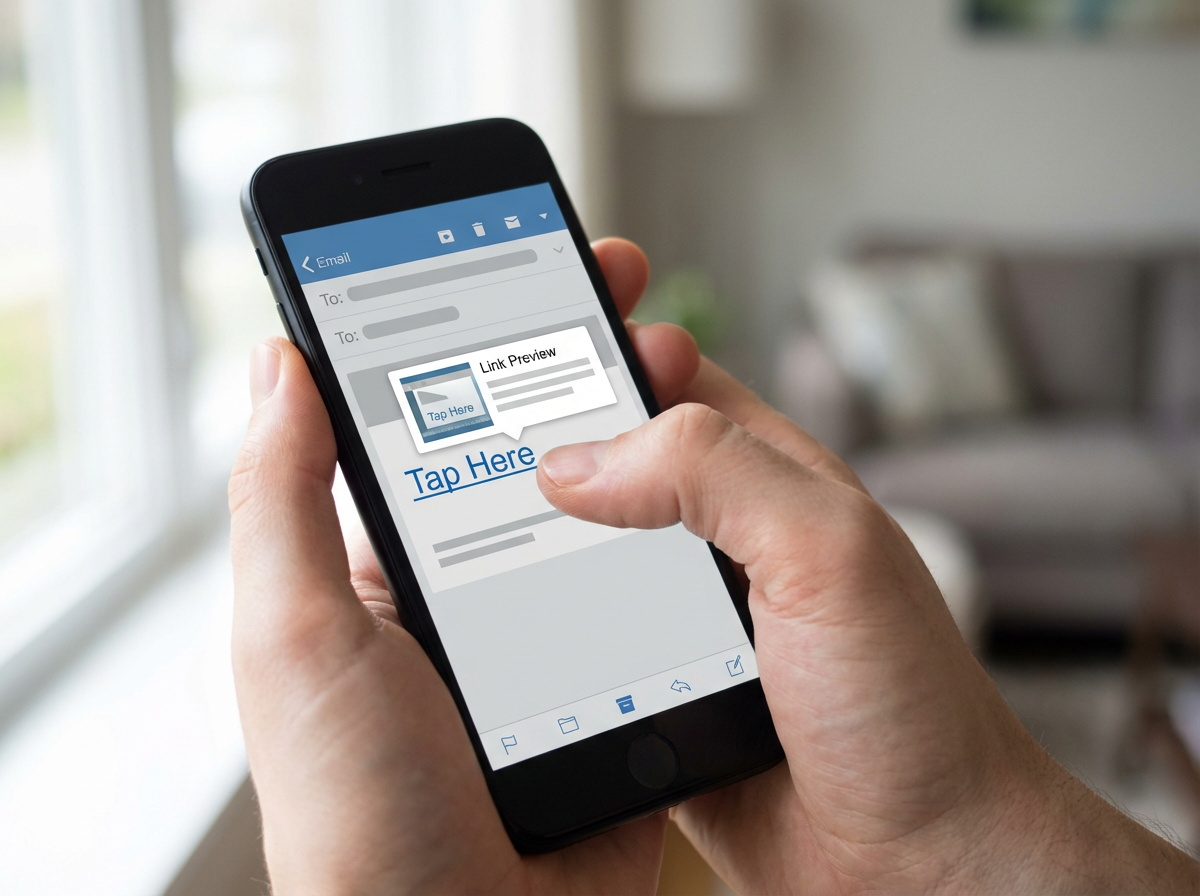
That click-test is where you find out if the system handoff is really fixed. Grab one link from a non-browser app (an email, a text, or a Slack message) and tap it. Then grab one link from inside your new browser (like a search result) and tap that. If both open in your new browser, you’re done.
If the link from email or chat still opens in the old browser, the device default didn’t change everywhere. On Windows, that often means HTTP/HTTPS (or another link/file type) is still assigned to the old browser. On Android, it can mean your new browser isn’t allowed to “open supported links,” or the old browser still has that permission.
If it only happens in one specific app, that app may be using an in-app browser or an “Open in Safari/Chrome” option. One more gotcha: profiles. If your old browser has a work profile, managed settings can keep pulling certain links back, even after you switch the default.
If you ever switch again, the fastest way to redo it (and avoid the same trap)
That “profiles” gotcha is the clue for your next switch: don’t start in the browser, start in the operating system. On Windows, go straight to Settings > Apps > Default apps and confirm HTTP and HTTPS both point to the new browser. On Mac, it’s System Settings > Desktop & Dock > Default web browser. On iPhone/iPad, Settings > (browser) > Default Browser App. On Android, Settings search for “default apps,” then Browser app.
Then do the same 30-second test from one non-browser app. If only one app ignores you, hunt for its “open in” setting or accept it uses a built-in view. The time-saver is knowing when it’s your default—and when it’s an app override.