You want hands-free control—will Eye Tracking cooperate with your setup today?
You pick up your iPhone or iPad, but tapping and swiping hurts, feels slow, or just isn’t possible today. Eye Tracking can take over the basics—opening apps, pressing buttons, even getting to Home—without needing your hands.
The catch is that it’s picky. If you’re lying back in bed, sitting off to one side, or dealing with a bright window behind you, the cursor can drift or stick to the wrong things. If you’re tired, holding your head still long enough to “click” can also get frustrating fast.
Before you spend energy troubleshooting, it helps to confirm two things: your device supports it, and the right setting is actually turned on—because Apple doesn’t put it where you’d expect.
Where did Apple hide Eye Tracking, and what should you turn on first?
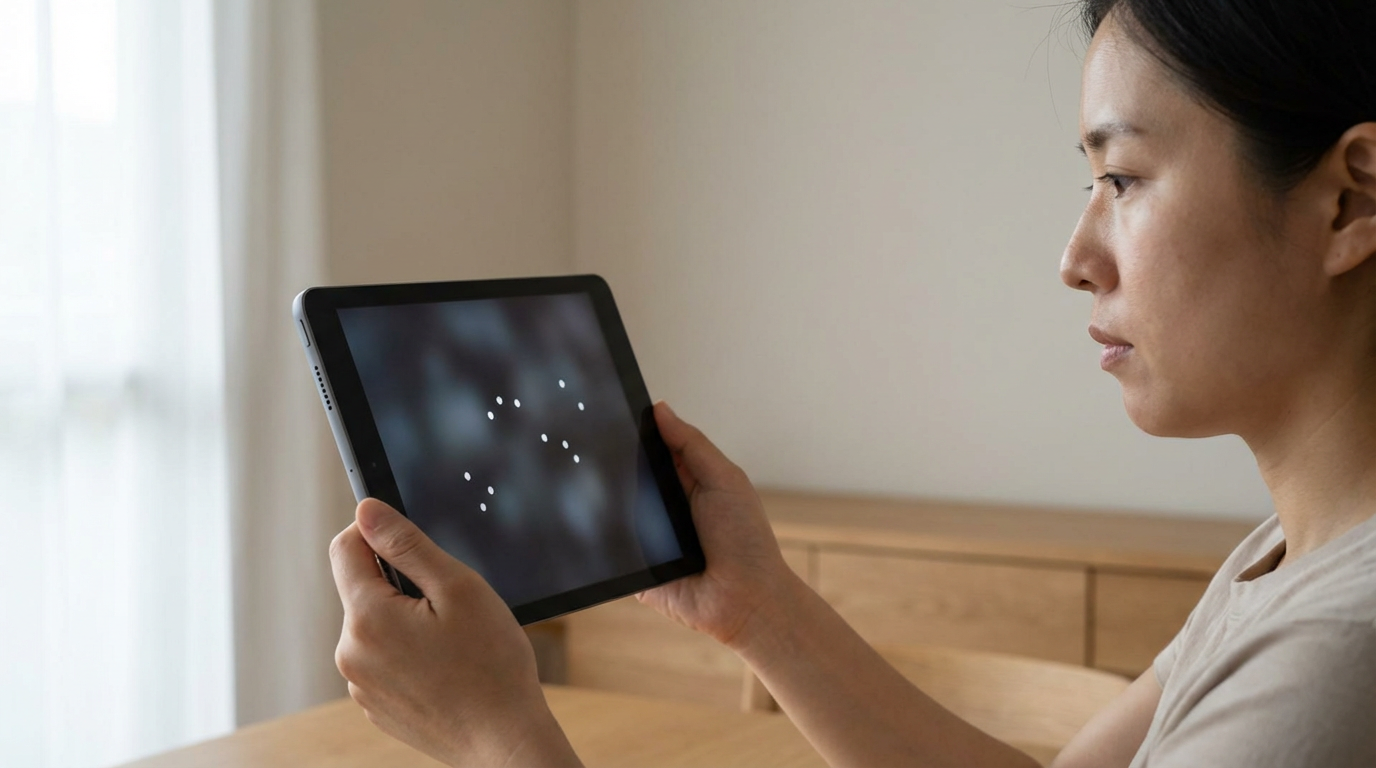
That “not where you’d expect” part usually means Settings, not Control Center. On your iPhone or iPad, open Settings > Accessibility and look for Eye Tracking (it may sit near other interaction tools). Tap it, then turn Eye Tracking on. The first time, iOS/iPadOS will walk you into calibration, so don’t start this when you’re in a rush or already uncomfortable.
Before you calibrate, turn on one more thing: the way you’ll “click.” In the same area, enable Dwell Control (often listed with eye or pointer options). Dwell means you look at something and hold your gaze for a moment to select it—no extra button needed. If holding your gaze is tough, also check for an option to use a switch or an external trigger instead.
Once those are on, the difference between “this is usable” and “this is impossible” often comes down to how you’re sitting, what the light is doing, and how far your device is from your face.
Before calibration: lighting, distance, and a position you can actually hold
That “how you’re sitting” part usually shows up immediately: you start calibration and the dot seems to jump, or you feel like you’re chasing it. Most of the time it’s not your eyes—it’s glare, distance, or an angle you can’t hold steady for 30 seconds.
Set yourself up with even light on your face. If there’s a bright window or lamp behind you, turn so it’s to your side, or pull a curtain. Clean the front camera area too; a smudge can soften the image enough to make tracking wobble. Aim for a comfortable, repeatable distance—roughly “reading distance,” not all the way across your lap and not inches from your nose.
Now pick a position you can keep: back supported, head not floating, and the device propped so you’re not holding it up with your neck. A pillow stand, case kickstand, or table works. If you can’t hold still, calibration will feel “off,” and it’s better to change the setup before you try again.
Calibration feels “off”—do you redo it, or adjust something instead?
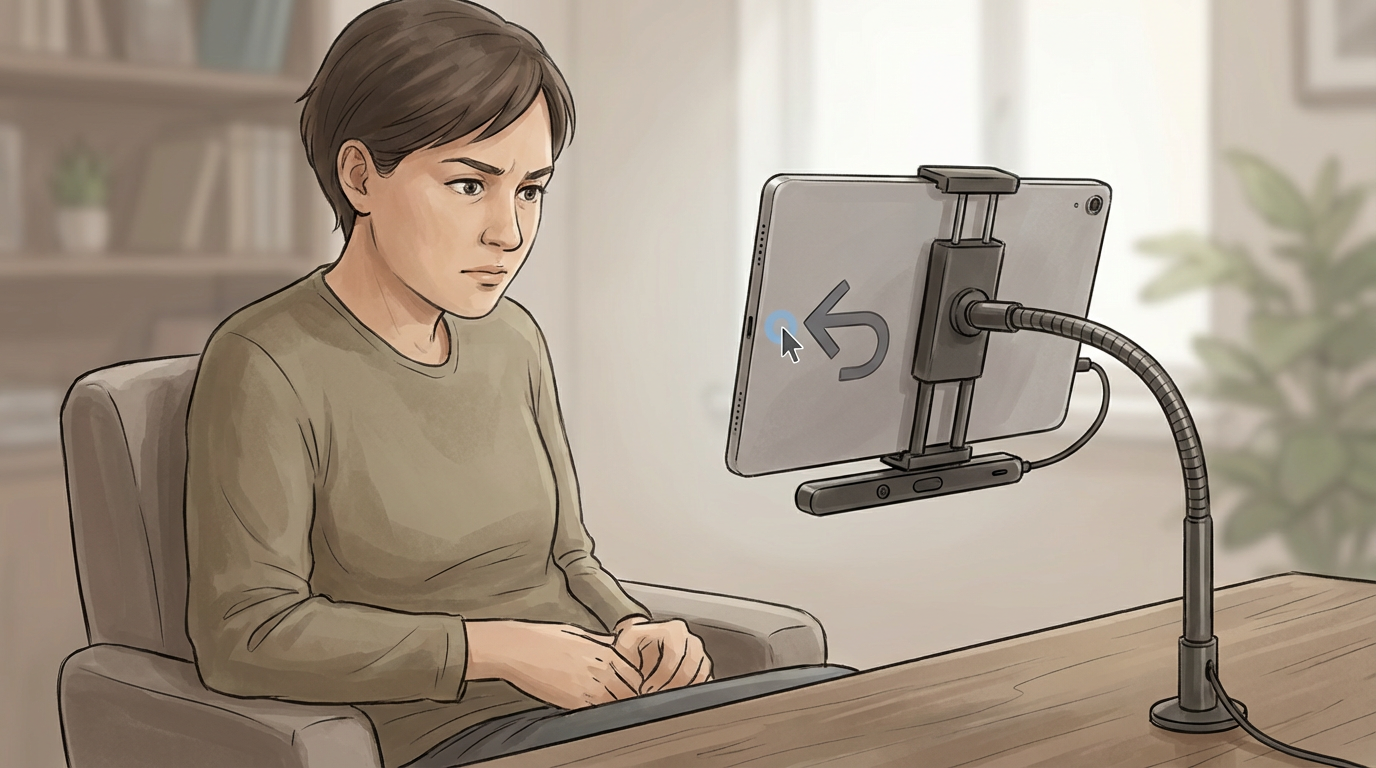
If you finish calibration and the pointer still lands a little to the side, most people instinctively restart calibration right away. Sometimes that helps. Often, it just repeats the same problem because the real issue is the setup drifting while you calibrate—your device slowly slides, your head angle changes, or the light shifts.
Before you redo anything, do a quick “reality check.” Look at a big, easy target (like the Settings back button). If it selects reliably on large items but misses small ones (like tiny toggles), you’re close—adjust your position and distance first. Nudge the device a bit higher so you’re looking more straight-on, and make sure it’s stable on a stand. If accuracy gets worse when you lean back or turn your head, pick the posture you can hold and calibrate in that posture, not your “ideal” one.
Redo calibration when the cursor is consistently wrong across the whole screen, or it drifts even when you’re steady. If you’re just slightly off, small setup fixes are usually faster—and less tiring.
So how do you actually ‘click’ with your eyes: dwell, switches, or a trigger?
Once the pointer lands where you expect, the next hurdle is making a selection without “staring” yourself into fatigue. The default is Dwell: look at a button and hold your gaze until a timer completes. If you find yourself accidentally selecting things while you’re just reading, increase the dwell time. If you’re waiting too long and tensing your neck, shorten it.
When dwell isn’t reliable—because your eyes jump, you blink a lot, or you simply can’t hold still—use a trigger instead. That’s usually a switch (Bluetooth switch, adaptive switch interface, or another accessibility input) that acts like “click now” while your gaze aims. The trade-off is obvious: you gain control and reduce misclicks, but you’re adding a device or a setup step that can fail or run out of battery.
Pick one method and practice on big targets first: app icons, the Back button, the Play/Pause button. Once that feels steady, you’re ready to tackle the gestures you normally rely on—without wearing yourself out.
Scrolling, Home, Control Center—what navigation method won’t wear you out?
That’s where most people hit the wall: selecting a button is doable, but scrolling a page or getting to Home can feel like you’re repeating tiny “stares” over and over. If you’re using dwell, set up one or two actions that do the heavy lifting—like a dedicated scroll control (up/down) and a reliable way to exit an app—so you’re not hunting for small targets each time.
For scrolling, prefer step-based scrolling (small, repeatable jumps) over trying to drag like you would with a finger. It’s slower per move, but it’s steadier and usually less tiring. If you need long reads (Safari, Mail), bump dwell time slightly so your eyes can rest on text without triggering clicks, and use a trigger/switch when you’re ready to scroll.
For Home and Control Center, use the most direct on-screen controls available (Home indicator, status area gestures, or an AssistiveTouch-style menu if you’ve enabled it). The trade-off is extra UI on screen, but it saves you from doing the same precise gesture dozens of times. If it starts missing or opening the wrong thing, you’re usually one quick setting tweak away from fixing it.
When it selects the wrong thing or stops responding: quick fixes you can try in 60 seconds
That “one quick setting tweak” is often just getting tracking back into a clean, predictable state. If it starts selecting the wrong thing, pause and reset your setup: wipe the front camera area, turn your face so bright light isn’t behind you, and re-center the device so it’s straight in front of you at the same “reading distance” you calibrated at.
If it stops responding, do the fastest software reset first: toggle Eye Tracking off and back on in Settings > Accessibility > Eye Tracking. If you use a switch trigger, confirm Bluetooth is on and the switch is connected. If you’re on dwell, temporarily increase dwell time—fatigue and tiny head shifts often show up as “random clicks.”
Redo calibration only when the pointer is consistently off across the whole screen. Otherwise, change one thing (light, distance, angle), test on a big button, and stop as soon as it’s usable again.