Continuity: what it is (and why it feels harder than it should)
You’re on your iPhone, you copy an address, then you sit down at your Mac and paste… and nothing happens. Or you see a call come in and think, “Why can’t I just answer this on my Mac?” That’s the promise of Continuity: your Mac and iPhone sharing small, useful moments so you don’t keep redoing the same steps.
It feels harder than it should because there isn’t one “Continuity” switch. The features depend on a few different pieces—your Apple ID, iCloud, Wi‑Fi, Bluetooth, and specific toggles like Handoff or Text Message Forwarding. Miss one, and the button you expect simply won’t show up.
The key is deciding which moments you actually care about syncing.
Which moments do you actually want on both devices?
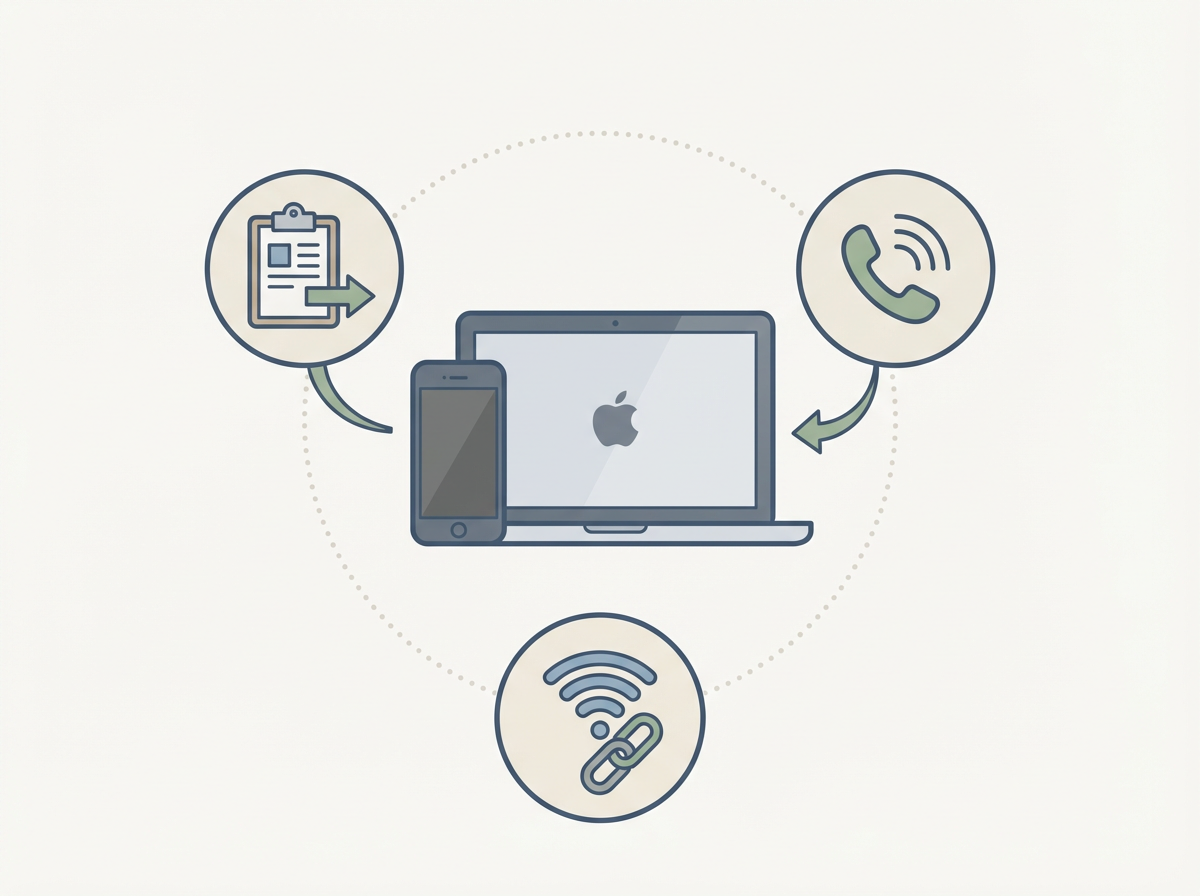
Most people don’t want “everything” shared. They want a few moments to follow them: copy on iPhone, paste on Mac; start an email or note on one device and finish on the other; answer a call without reaching for the phone. When those specific moments work, Continuity feels invisible. When you chase every option at once, it usually turns into random toggles and no clear win.
So pick your targets. If you bounce between devices all day, Handoff and Universal Clipboard are the daily drivers. If your phone lives in another room, iPhone Cellular Calls and Text Message Forwarding matter more. If you travel or work from cafés, Instant Hotspot can save you from hunting for Wi‑Fi.
There’s a trade-off: the more “phone stuff” you bring to the Mac, the more interruptions you can create. A Mac that rings and dings during meetings is still “working.” It’s just not helping. Before you touch settings, do a quick compatibility check so you know these features can even appear.
A quick compatibility check before you chase settings
That “can these features even appear?” question saves you a lot of pointless tapping. The usual pattern is you turn on Handoff or Text Message Forwarding, restart once, and still don’t see the option on the Mac. Often it’s not a broken setting—it’s a mismatch between devices, software versions, or an account detail that blocks the feature entirely.
Start simple: confirm both devices are signed in to the same Apple ID (the one you actually use for iCloud), and that iCloud is enabled on both. Then check software: if your iPhone is very old or your Mac is stuck on an older macOS that can’t update, some Continuity features won’t show up at all. The same goes for region and carrier limits for calling and texting on Mac—your iPhone can support it, but your plan may not.
One more practical friction: work/school Apple IDs and “managed” devices can restrict iCloud features. If you’re using a work Mac, you may be able to do Handoff but not Messages syncing. Once compatibility is solid, the rest is mostly turning on the core connections that let the devices discover each other.
The “same Apple ID” moment: when you realize the Mac and iPhone aren’t really paired
That “discover each other” part is where many setups quietly fail: both devices look signed in, but they aren’t signed in the same way. A Mac might be using one Apple ID for iCloud, while the iPhone uses another for iCloud (or the App Store), and Continuity features treat that like two separate people. The result is confusingly inconsistent—FaceTime works, but Universal Clipboard doesn’t; Messages shows up, but Text Message Forwarding never offers the Mac.
Do a quick ID match. On iPhone: Settings > your name. On Mac: System Settings > Apple ID. The email at the top should be identical on both. If it isn’t, decide which Apple ID you want for iCloud long-term, then sign out of the “wrong” one and sign in with the right one.
The trade-off is friction: signing out can trigger iCloud data prompts (Contacts, Photos, Notes) and may log you out of services like Messages. If you’re unsure, pause and back up or confirm what’s stored locally before you switch—then you can turn on the core connections without second-guessing.
Turn on the core connections (Wi‑Fi, Bluetooth, and Handoff) without overthinking it
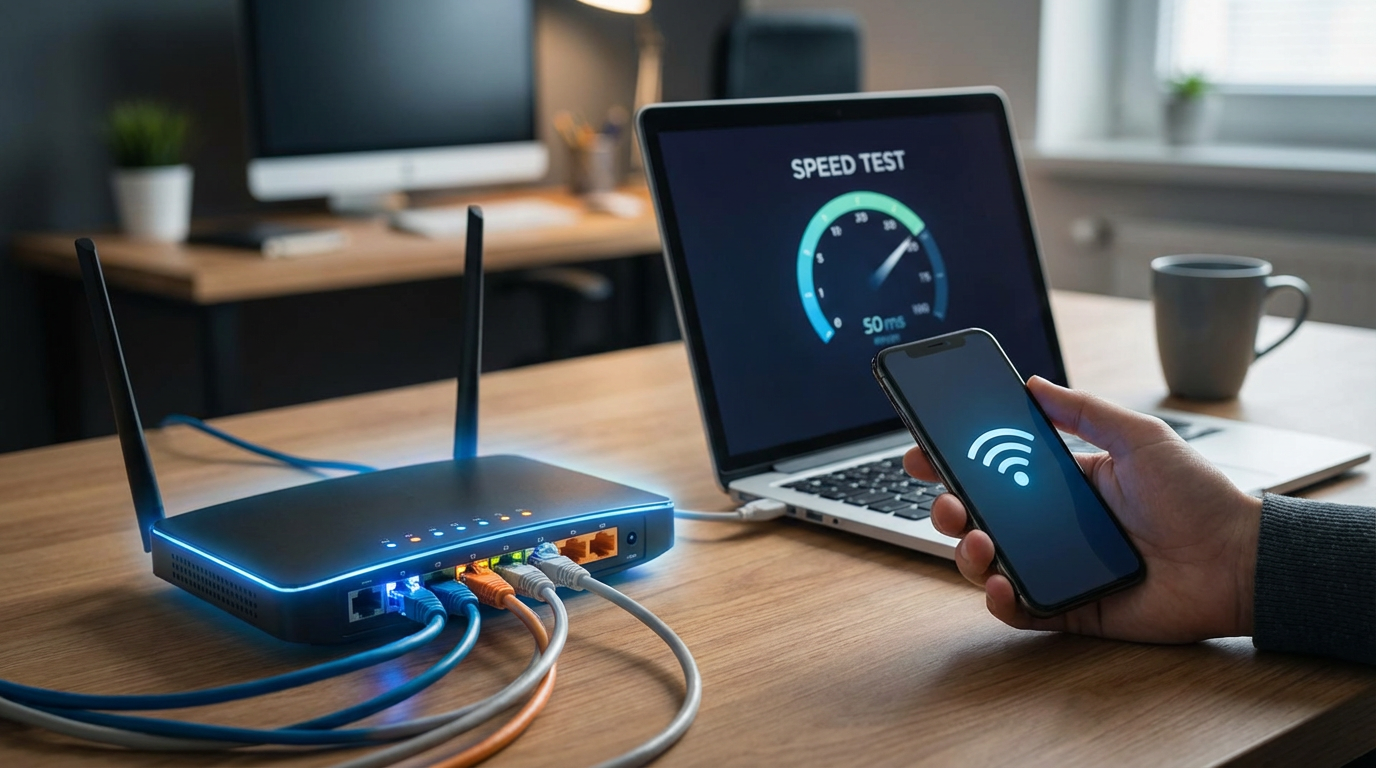
Once you’re on the right Apple ID, the usual stall is simpler: the Mac and iPhone aren’t “seeing” each other. In real life, that looks like you’re on the same Wi‑Fi and still can’t copy/paste, or Handoff never appears in the Dock. Before you restart anything, make sure both Wi‑Fi and Bluetooth are actually on (not just “available”) on both devices, and that Airplane Mode isn’t cutting one of them off.
Then flip the one Continuity toggle that quietly matters most: Handoff. On iPhone: Settings > General > AirPlay & Continuity > Handoff. On Mac: System Settings > General > AirDrop & Handoff > Allow Handoff. Universal Clipboard depends on the same path, so this single switch fixes two “missing feature” complaints at once.
The trade-off: “privacy” firewalls, and some corporate Wi‑Fi can block device discovery even when internet works fine. If you’re on work Wi‑Fi and it’s flaky, test on a home network or your iPhone hotspot before you keep digging into settings.
Calls, texts, and hotspot: do you want your Mac to “act like your iPhone”?
That quick “test on your iPhone hotspot” often raises the bigger question: do you actually want your Mac to behave like an extension of your phone? For some people it’s a relief—your iPhone can stay in a bag while your Mac handles the basics. For others it’s a fast way to add noise to a device they use to focus.
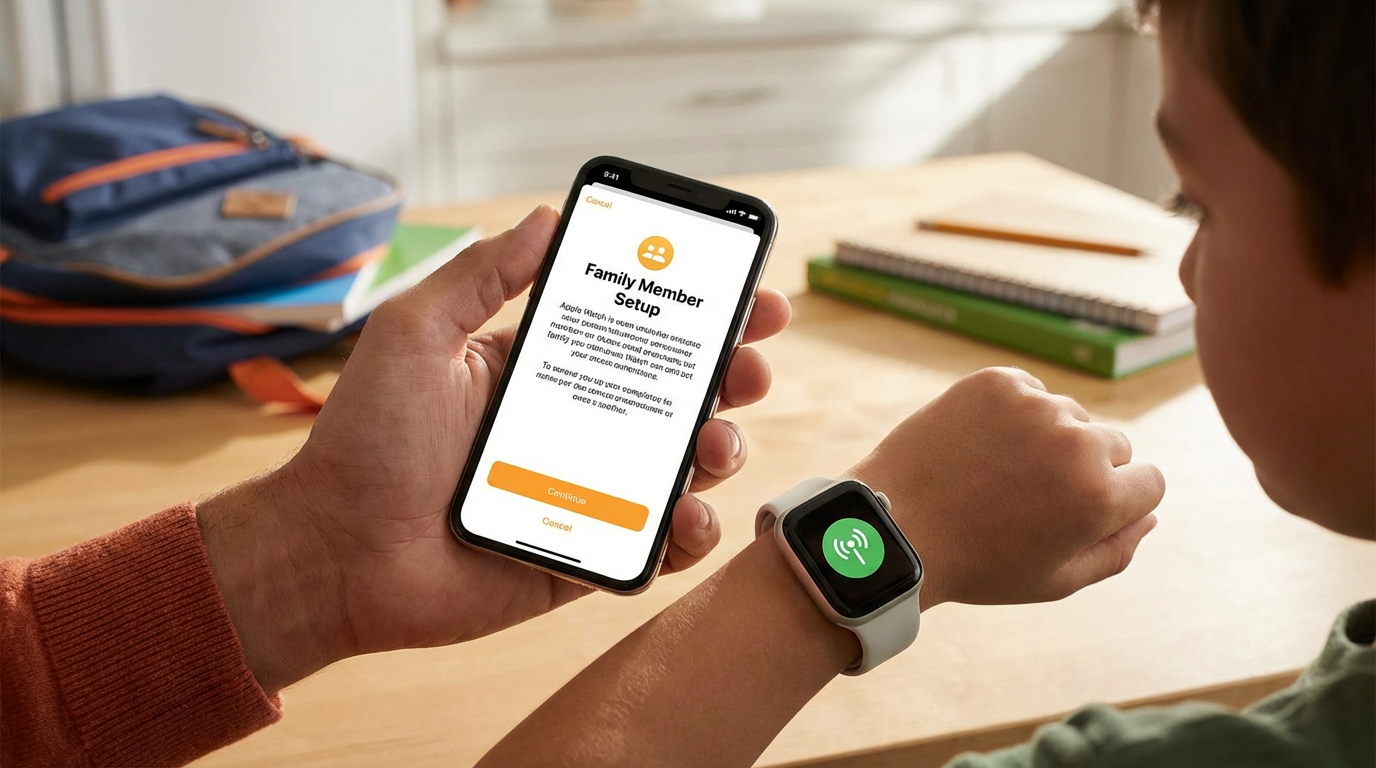
If you want calls on Mac, turn on Calls on Other Devices on iPhone (Settings > Phone) and make sure your Mac is signed into the same Apple ID in FaceTime, then enable calling there. For texts, Text Message Forwarding is the key switch on iPhone (Settings > Messages), because SMS/MMS won’t reach the Mac without it—even if iMessage already works.
Instant Hotspot is the “no Wi‑Fi available” win: with the same Apple ID and Bluetooth/Wi‑Fi on, your iPhone’s hotspot should appear in your Mac’s Wi‑Fi list without you touching the phone. The trade-off is practical: calls and forwarded texts can pull you out of meetings, and hotspot can burn through battery and data faster than you expect. If any of these options never appear, a short troubleshooting pass usually explains why.
When the button never shows up: a 5-minute Continuity troubleshooting pass
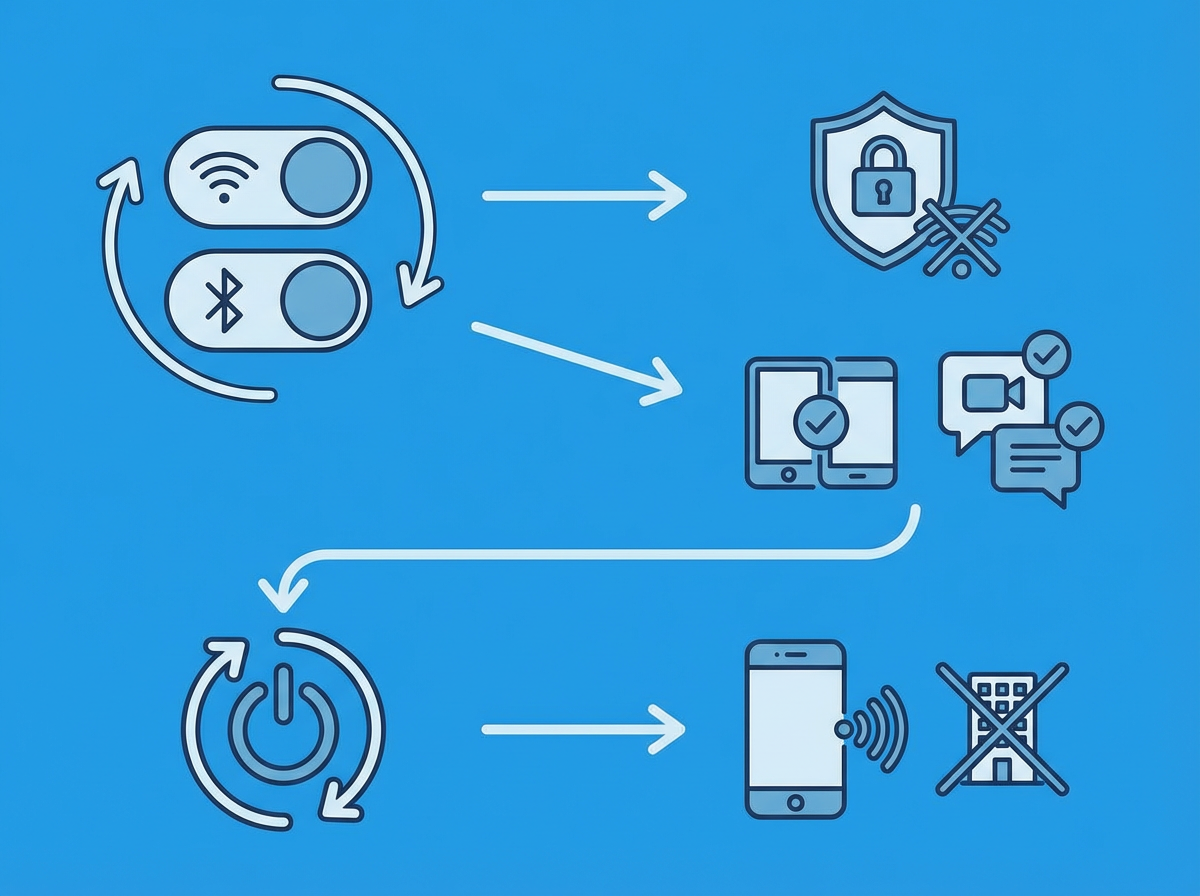
If a toggle is on and the option still never appears, it usually means the devices aren’t “discovering” each other in a clean way. Start with the fastest reset: turn Wi‑Fi and Bluetooth off and back on on both devices (Control Center is fine), then wait 20–30 seconds.
Then confirm the feature-specific “gate” once, not ten times. For Handoff/Universal Clipboard: Handoff must be enabled on both, and both devices must be awake and unlocked at least once after you change it. For calls/texts: open FaceTime on the Mac and make sure you’re signed in, then check Text Message Forwarding on iPhone and look for the Mac in the list. If the Mac never appears there, it’s almost always Apple ID mismatch or network discovery.
Last resort, but still within five minutes: restart both devices. If it works at home but not on work Wi‑Fi, the trade-off is real—you may need to use your iPhone hotspot (or ask IT) for reliable Continuity. Once it shows up once, you can lock in a setup that stays stable.
Lock it in: your everyday Continuity setup and a simple reset plan
Once it shows up once, most people stop touching anything—and that’s usually the right move. Keep a “steady” setup: same Apple ID on both, Wi‑Fi and Bluetooth left on, Handoff enabled, and FaceTime/Messages signed in on the Mac. Then decide where you want quiet: many people leave Handoff and Universal Clipboard on, but turn off Calls on Other Devices or Text Message Forwarding during focus-heavy weeks.
When it breaks again, use the same small reset every time so you don’t spiral. Step 1: toggle Wi‑Fi and Bluetooth off/on on both devices, wait 30 seconds. Step 2: disconnect any Network on both for a minute. Step 3: open FaceTime and Messages on the Mac once (this often “wakes up” the sign-in). Step 4: restart both devices. If it only fails on one network, treat that as the problem and switch networks or hotspot.