The couch-PC friction you notice the moment Windows shows up
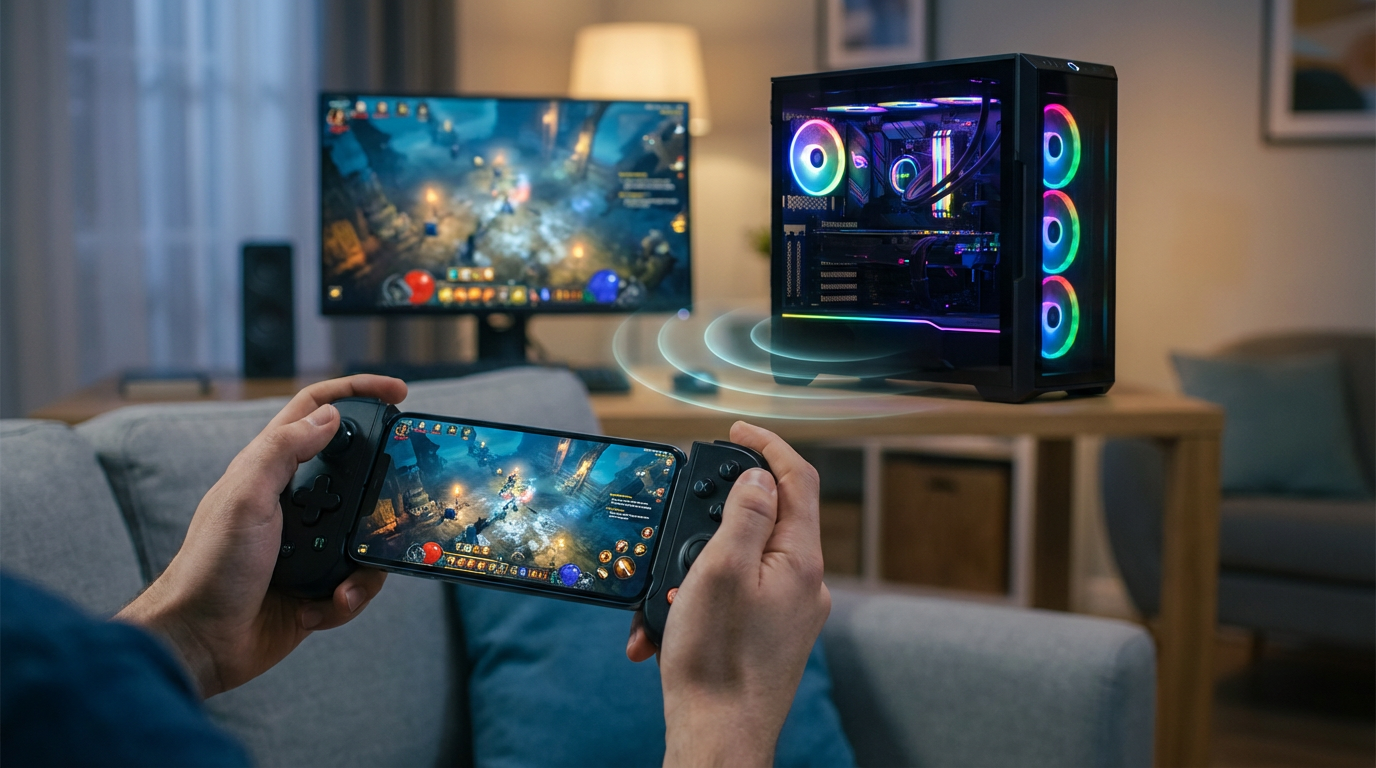
You sit down, grab the controller, and the game part feels solved. Then Windows shows up and everything slows down. The login box wants a keyboard. A launcher opens behind another window. A “Yes/No” pop-up steals focus. On a TV across the room, even a simple settings tweak turns into hunting for a mouse, balancing a keyboard on your lap, or walking back to the desk.
The friction isn’t that controllers can’t do these tasks—it’s that Windows assumes a pointer, clicks, scroll, and text entry on demand. If your gamepad can behave like a mouse and a basic keyboard without surprises, the whole living-room PC stops feeling like a workaround.
That’s where the first real choice lands: do you let Steam Input own the controller end-to-end, or do you keep things lightweight with a small desktop remapper?
Do you want Steam Input to handle everything—or a lightweight remapper?
That choice usually shows up the first time you hit the Steam button to open Big Picture, then realize you also need the same controller to deal with a browser login or a Windows prompt. If Steam is already part of your “from couch to game” path, letting Steam Input manage the controller can feel clean: one place to set a desktop layout, per-game layouts, action sets, and chorded shortcuts.
The trade-off is ownership. When Steam Input is “on,” it can sit between the controller and everything else. That’s great when you want consistent behavior, but it’s also how you get double inputs in some games, or why a non-Steam launcher suddenly ignores your buttons unless Steam is running and focused. You’ll also spend more time thinking about which profile is active.
A lightweight remapper flips that. You get a simple “controller becomes mouse” layer that works even when Steam is closed. But you lose per-game smarts and quick switching. Either way, before you map anything, you need to confirm the controller, the connection, and what app is currently reading inputs.
Before mapping anything: check your controller, connection, and ‘who owns’ inputs
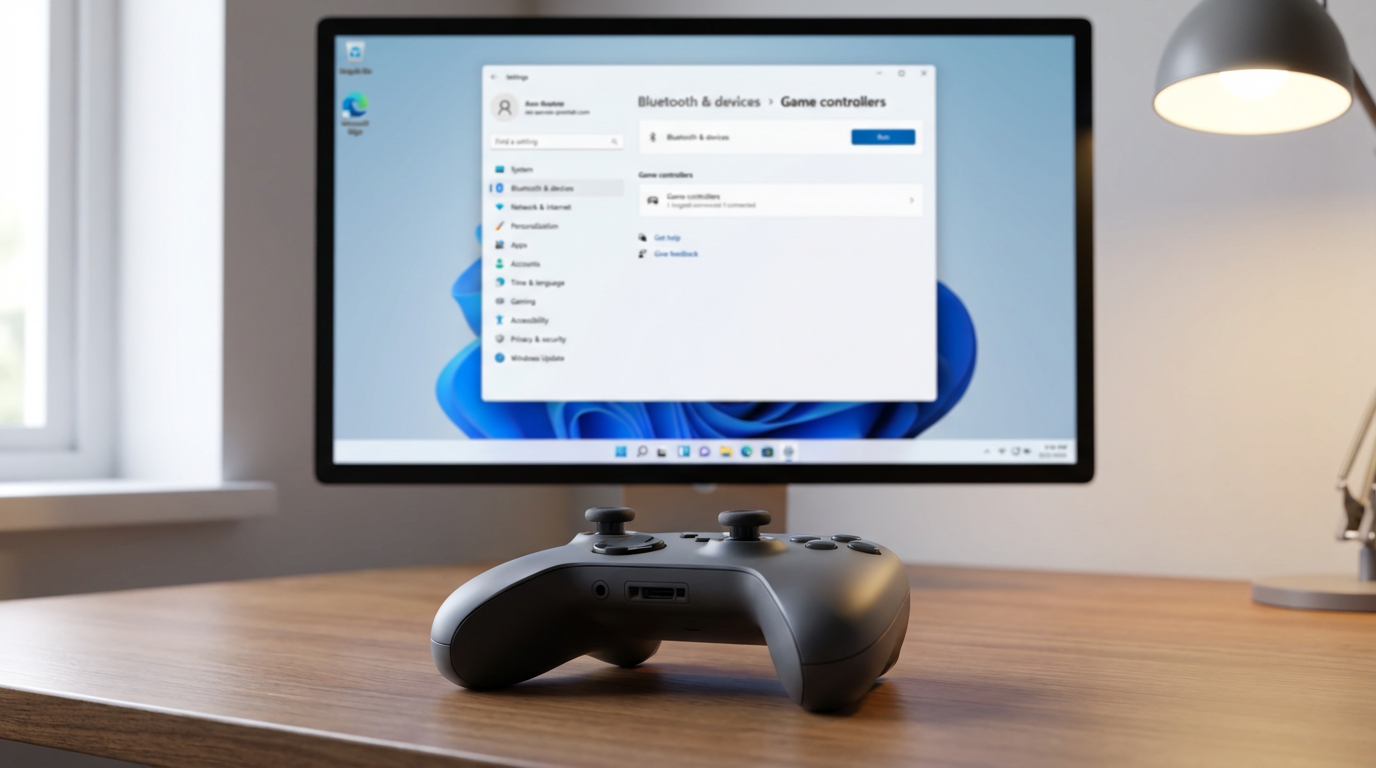
That “what app is currently reading inputs” question bites hardest when everything almost works: the cursor moves, but a button also pauses a game in the background, or a trigger click registers twice. Before you touch mappings, confirm the basics in the simplest place possible—Windows itself. Plug in (or pair) the controller, open Bluetooth & devices / Game controllers, and make sure you see one device with stable inputs. If the stick jitters at rest, you’re looking at drift, not a bad layout.
Connection details matter on a TV setup. Bluetooth can add a touch of lag and occasional drops, especially if the PC is tucked in a cabinet; a 2.4GHz dongle or USB cable usually feels tighter. Then decide who “owns” inputs: Steam Input, a remapper, or the game directly. If two layers listen at once, you’ll chase ghosts later.
Once you know the controller is clean and the ownership is single, your first desktop layout becomes a quick, boring win.
Your first usable desktop layout: stick (or gyro) to cursor, triggers to clicks
That “quick, boring win” is getting to a point where you can log in, close a dialog, and launch a game without leaving the couch. Start with one stick as the mouse cursor. Map a press on that stick to left click, and use the other trigger as right click so you can hit context menus without thinking. Put scroll on the other stick’s up/down, or on the D-pad if you want it to feel more like a wheel.
If you have gyro (DualSense, Switch Pro, some third-party pads), treat it as a fine-adjust tool: keep stick for big moves, gyro for landing on small buttons. It usually needs a “gyro on” button (like holding left trigger) so the cursor doesn’t drift when you shift on the couch.
The friction you’ll hit fast is accidental clicks and tiny drift. Add a small dead zone, and don’t set cursor speed so high you can’t stop on a checkbox. Then you can tune how it feels on a TV.
When the cursor feels floaty, slow, or twitchy on a TV
That “tune how it feels on a TV” part usually shows up as one of three complaints: the cursor lags behind your thumb, crawls across the screen, or jitters like it can’t settle on a button. TVs add their own friction—extra display processing can make motion feel late—so start by turning on your TV’s Game Mode (or PC Mode) and then judge the controller again.
If the cursor feels floaty, lower any smoothing/acceleration in Steam Input or your remapper and raise the polling or “mouse” update rate if the tool offers it. If it’s slow, don’t just crank sensitivity; add a little curve or “outer ring” boost so small movements stay precise but long throws cross the screen. If it’s twitchy, increase stick dead zone slightly and reduce gyro sensitivity before you blame drift.
The trade-off is real: more speed costs precision. Once it lands reliably on small UI targets, the next pain point is typing and those unavoidable keyboard moments.
Launchers, pop-ups, and text entry: the ‘keyboard moments’ you can’t avoid
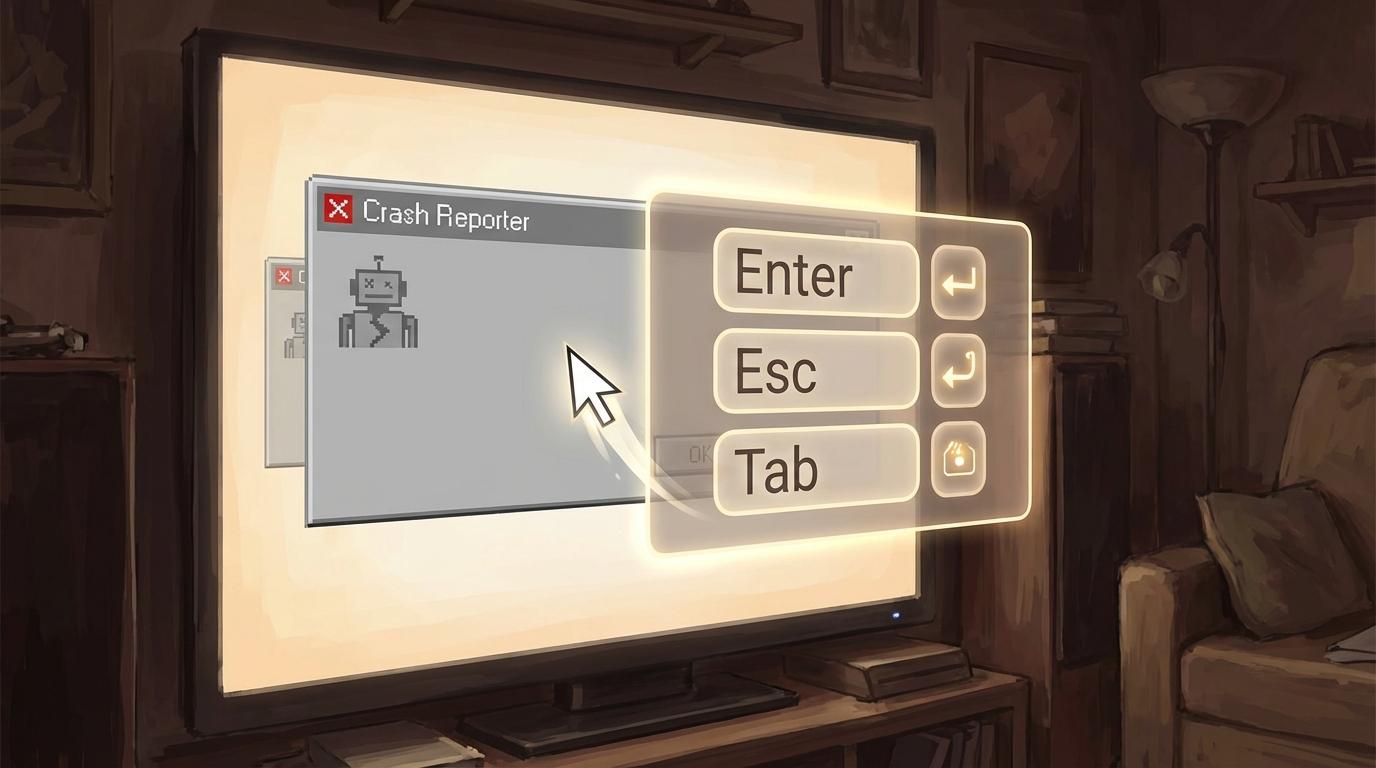
Those “keyboard moments” usually hit when a launcher wants a password, a UAC prompt steals focus, or a crash reporter appears half off-screen. Your mouse mapping still works, but progress stops because you need text, Tab/Enter, or a quick Alt+F4. The fix is to bake a tiny “utility layer” into your desktop layout: a button for Enter, one for Escape, bumpers for Tab and Shift+Tab, and a chord for Alt+F4 (or Alt+Tab) so you can recover without getting up.
Text entry is the trade-off you can’t fully dodge. The on-screen keyboard works, but it’s slow on a TV, and it’s easy to type into the wrong window if focus jumped. Get in the habit of clicking the field first, then opening the OSK, and map a dedicated “show keyboard” shortcut so you aren’t hunting menus when a login box appears.
Once you can survive pop-ups and typing, the next risk is switching into a game and accidentally keeping the desktop mapping active.
Switching into a game without breaking its controls (or getting double inputs)
That’s when you launch a game, pick up the controller, and something feels wrong: the right stick still moves a mouse cursor, triggers click menus, or every button fires twice. It usually happens because two layers are active at once—Steam Input plus the game’s own controller support, or a desktop remapper that never turned off when the game grabbed focus.
The clean fix is a deliberate switch. If you’re using Steam Input, keep a “Desktop” layout and a per-game layout, and make sure the game sees only one device type where possible (either gamepad input or keyboard/mouse-style binds, not both). If you’re using a remapper, set it to auto-suspend on specific .exe files or toggle it with a hold-chord you won’t hit mid-fight.
The trade-off is convenience versus safety: the more automatic you make switching, the more you’ll notice when focus changes unexpectedly—so build one quick “am I doubled?” check before you settle in.
A couch-friendly ‘done’ state: quick tests and habits that keep it reliable
That quick “am I doubled?” check becomes your couch ritual: on the Windows desktop, move the cursor, left/right click, scroll, and hit Tab twice to confirm focus is where you think it is. Then open a non-Steam window (Settings or a browser) to make sure your desktop mapping still works when Steam isn’t front-and-center. If anything feels off, don’t troubleshoot in a game—fix it here.
Lock in a “done” state with two habits: keep one obvious toggle/chord that turns the desktop layer on/off, and keep one printed note (or phone note) of the three recovery combos you actually use (Alt+Tab, Alt+F4, show keyboard). The consequence is small but real: you’ll spend 30 seconds up front, and save ten minutes of couch confusion later.