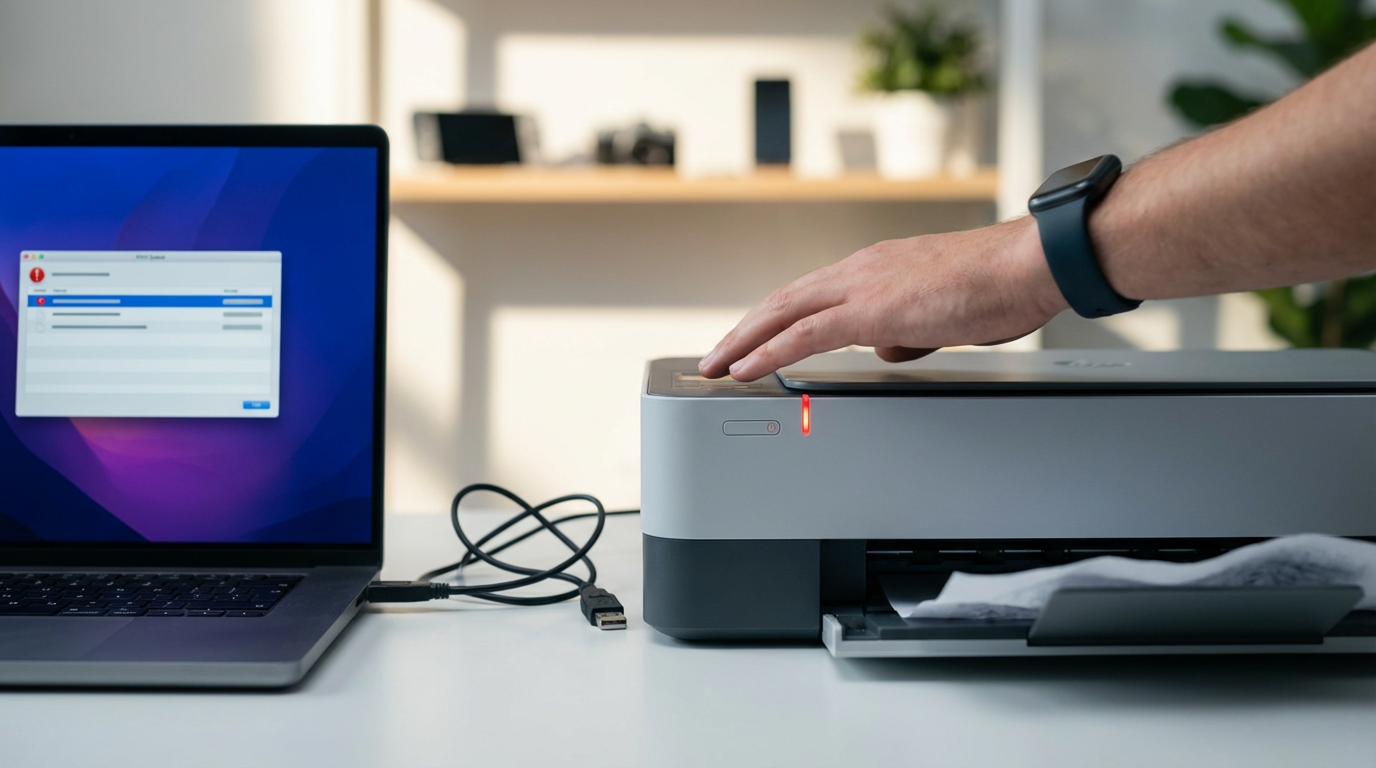
You hit Print… and nothing happens
You click Print, the printer’s name is there, and then… nothing. No sound, no paper movement, sometimes not even a blinking light. In a home office, that usually means the job never made it to the printer at all—or it did, and got blocked before the printer could act on it.
Do two quick checks before you start guessing. First, confirm the printer is powered on and awake (many look “on” but are in sleep mode); tap the power button once and watch for any screen or light change. Second, try printing something tiny, like a one-page text document, not a big PDF—large files can hang and make you chase the wrong problem.
If the printer stays silent, the fastest next step is to look at the printer itself for a “can’t print yet” condition: paper, ink/toner, a door slightly open, or an error light you’ve stopped noticing. That’s where to start.
Is the printer actually ready to print? (paper, ink/toner, doors, and error lights)
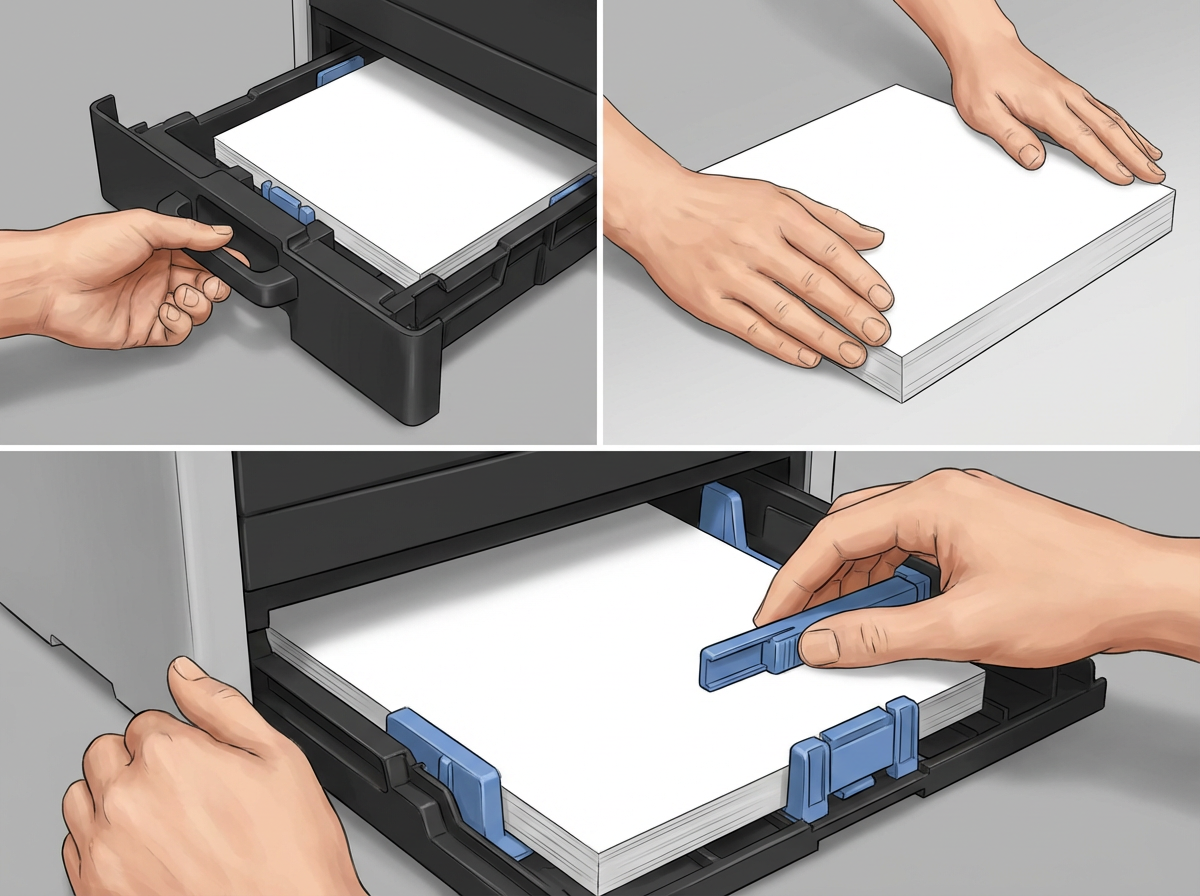
Most of the time, the printer isn’t “ignoring” you—it’s waiting on a simple physical condition. Walk up to it and look for anything that would prevent motion: a flashing light, an error icon on the screen, or a message like “Load paper” or “Cover open.” If there’s a resume/OK button, press it once; some models won’t start until you acknowledge the warning.
Check paper the boring way: pull the tray out, square the stack, and set the guides so they touch the paper without bending it. Remove any ripped scraps you can see in the feed area. Then check ink/toner even if the printer “printed yesterday.” Low ink can stop label printers and photo printers early, and some lasers refuse to print when one color reads empty.
Finally, open and firmly re-close every door: paper tray, rear access, ink/toner cover. A door that’s off by a few millimeters can block printing with no other clue. If the printer shows ready/idle after this, send that tiny one-page print again—then, if it still doesn’t move, it’s time to look at what the computer says is happening to the job.
The job is “printing” but stuck in the queue—clear it the right way
Sometimes the printer shows “Ready,” but your computer insists the document is “Printing” forever. That usually means one bad job is blocking everything behind it, or the print service on the computer got wedged mid-send.
Open your print queue and look for the first job that won’t move. On Windows, go to Settings > Bluetooth & devices > Printers & scanners, pick your printer, then “Open print queue.” On Mac, go to System Settings > Printers & Scanners, select the printer, then open the queue. Cancel the stuck job (and any duplicates). If it won’t cancel, stop there and don’t keep re-printing—each click just adds more traffic.
If the queue won’t clear, restart the print service cleanly: reboot the printer first, then reboot the computer. After it comes back, send your tiny one-page test again. The trade-off: clearing the queue can delete a big document you still need, so save the file and reprint from the original once things are moving—then verify the computer is even sending to the right printer.
Which printer is your computer sending to? (the wrong printer, the offline one, or a ghost copy)
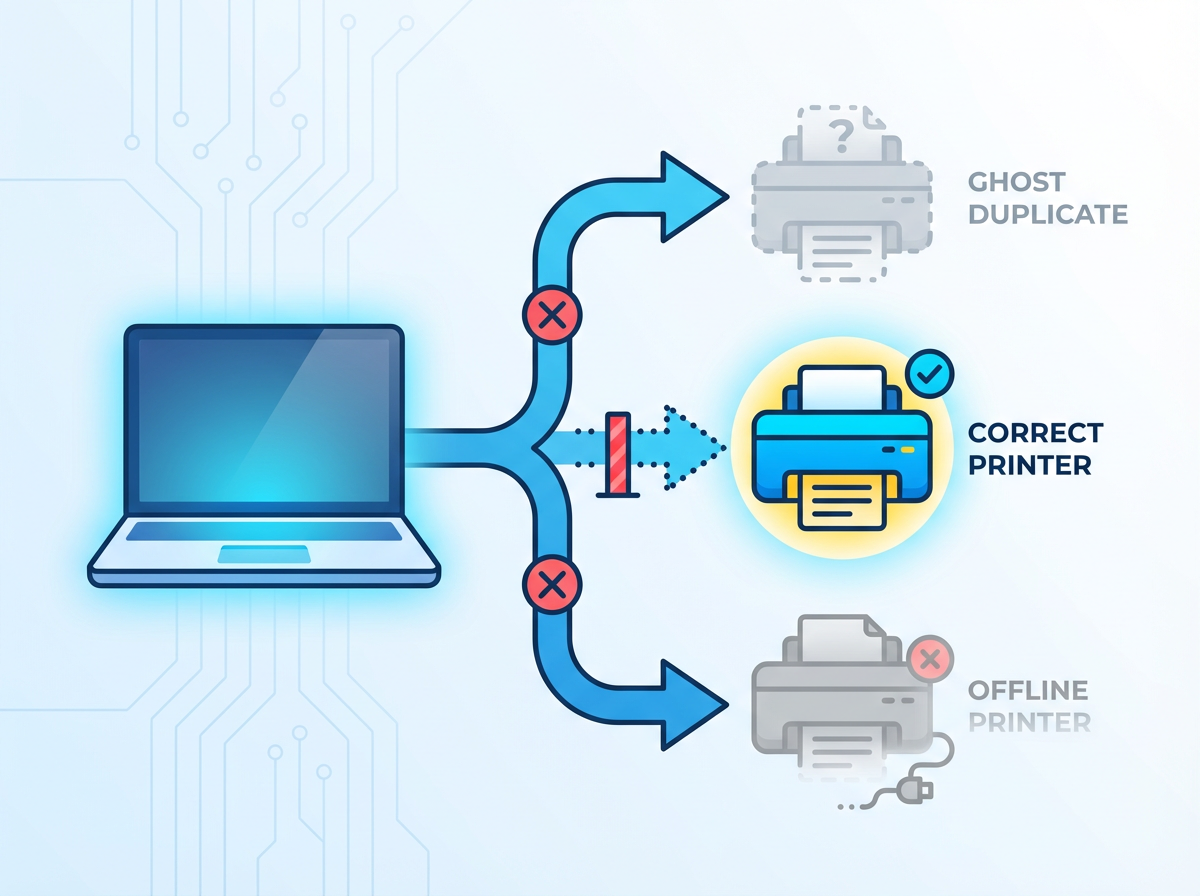
It’s common to clear the queue, hit Print again, and still get silence—because the computer is sending the job to a different printer than the one in front of you. In small offices this happens when there’s a second device on the network, an old printer you no longer own, or a copy created by a driver install (“Printer (Copy 1)”). The job looks like it went somewhere, but it didn’t go to the right place.
Start by checking the printer name on the device itself (screen label, printed status page, or the sticker on the front) and match it to what your computer shows. On Windows: Settings > Bluetooth & devices > Printers & scanners, then set the correct one as Default. On Mac: System Settings > Printers & Scanners, pick the right printer and make sure you’re not printing to “AirPrint” vs the vendor version by accident.
Then look for “Offline,” “Paused,” or “Use Printer Offline” in the queue and turn that off. If you see multiple near-identical entries, remove the extras and keep only the one that matches your connection today (Wi‑Fi or USB). The friction: deleting a “ghost” printer can also remove saved presets like label sizes, so note any special settings before you clean up. Once only one correct printer remains, try that tiny one-page print again and watch whether the connection type is the real culprit.
Wi‑Fi printing fails, USB works (or vice versa): isolate the connection in 5 minutes
If printing works over USB but not over Wi‑Fi (or the opposite), stop changing settings and use that difference as your clue. One path works, so the printer can print and the computer can generate a job. What’s failing is the link between them.
Do a quick isolate test. If you’re on Wi‑Fi, power-cycle the printer, then restart your router (yes, it’s annoying, but it clears stale connections). After everything is back, check the printer’s screen: confirm it’s on your current Wi‑Fi network name (not a guest network or an old extender).
If Wi‑Fi still fails but USB works, remove and re-add the printer using its current IP address or the vendor’s setup app, not an old “AirPrint/Bonjour” entry that may be pointing to yesterday’s address. If USB fails but Wi‑Fi works, try a different USB port/cable and avoid hubs. Once the connection is stable, the next break point is often a driver or app update.
When a driver/app update breaks printing: repair without reinstalling everything
That “it worked yesterday” moment often lines up with a driver, operating system, or printer app update. The printer still shows up, but jobs stall, print blank pages, or never leave the computer because the software piece that translates your document into printer language changed.
Start with the lightest fix: restart the computer (not sleep/wake) and power-cycle the printer. Then remove any “add‑on” that came with the update without removing the printer itself. On Windows, open the printer’s “Printing preferences” or “Printer properties” and look for an option to restore defaults; on Mac, open the printer settings and reset the printing system only if you’re willing to re-add printers afterward. That reset is effective, but it wipes queues and saved presets.
If the vendor app was updated, open it once and complete any setup prompts; a half-finished wizard can block printing. If that doesn’t help, update (or roll back) just the printer driver from the vendor site or Windows Update—then print a one-page test again. If the computer still won’t send a clean job, it’s time to prove whether the printer can print on its own.
Print a test page from the printer itself (proves what’s broken)
If the computer still can’t send a clean job, stop using the computer as the test. Print a self-test page from the printer’s own panel. Most printers have it under Setup/Tools/Reports (often “Printer Status Report,” “Network Configuration,” or “Print Quality Report”). If there’s no screen, look for a button combo like holding Resume/Cancel for a few seconds, or use the vendor app on your phone to print a diagnostic page.
If the printer prints this page, the printer’s basic mechanics are fine. Your problem is upstream: the computer, the connection (Wi‑Fi/USB), or the driver. Use the test page as proof and focus back on the queue, the selected printer, and the connection method you isolated earlier.
If it won’t print its own test page, treat it as a printer-side issue: paper feed, jams, ink/toner detection, or a hardware fault. The trade-off is time—you can spend an hour reinstalling software and get nowhere if the printer can’t pass this one test. Keep that report; it often shows error codes and the exact Wi‑Fi name/IP you’ll need if you call support.
If it still won’t print: the few signs it’s time to call support or replace it
That report you kept is the line between “still troubleshooting” and “get help.” If the printer can’t print its own self-test page after you’ve confirmed paper is seated, doors are fully closed, and you’ve power-cycled it, you’re likely looking at a printer-side fault—feed rollers not grabbing, a sensor stuck, or ink/toner detection failing.
Call support when you have a repeatable error code/message, grinding/clicking noises, or the same jam in the same spot every time. Have the model number, the report page, and what connection you’re using ready; it cuts the back-and-forth.
Replacement starts to make sense when the printer won’t pass self-test, won’t stay connected after setup, or needs “maintenance” parts that cost close to a new unit. The friction: a cheap printer can be fast to replace, but you’ll spend time re-adding it everywhere—plan 20 minutes for each computer.